Logging in to Klaviyo is usually a quick process, but the exact steps can vary depending on whether an account uses a standard email and password, Google sign-in, single sign-on, or two-factor authentication. Klaviyo is a marketing automation platform used for email, SMS, customer segmentation, analytics, and ecommerce growth, so secure access is an important part of daily workflow for marketers, store owners, and account managers.
TLDR: To log in to Klaviyo, a user visits the Klaviyo login page, enters the email address associated with the account, and completes the required authentication step. If the account uses a password, they enter it; if it uses Google sign-in, SSO, or two-factor authentication, they follow those prompts instead. If login fails, the most common fixes are resetting the password, checking the correct email address, clearing browser issues, or contacting an account administrator.
Understanding the Klaviyo Login Process
Klaviyo’s login process is designed to confirm that the person accessing the account is authorized to view customer data, campaigns, flows, lists, segments, and reporting. Since many Klaviyo accounts contain sensitive customer and ecommerce information, the platform may use multiple security layers. These can include a password, an email verification step, two-factor authentication, or an organization-based single sign-on method.
In most cases, a user begins by opening a web browser and going to the Klaviyo login page. From there, they enter the email address linked to the account. If the email is recognized and the account is active, the platform displays the next required step. This may be a password field, a Google login prompt, an SSO redirect, or a verification request.
Step-by-Step: How a User Logs In to Klaviyo
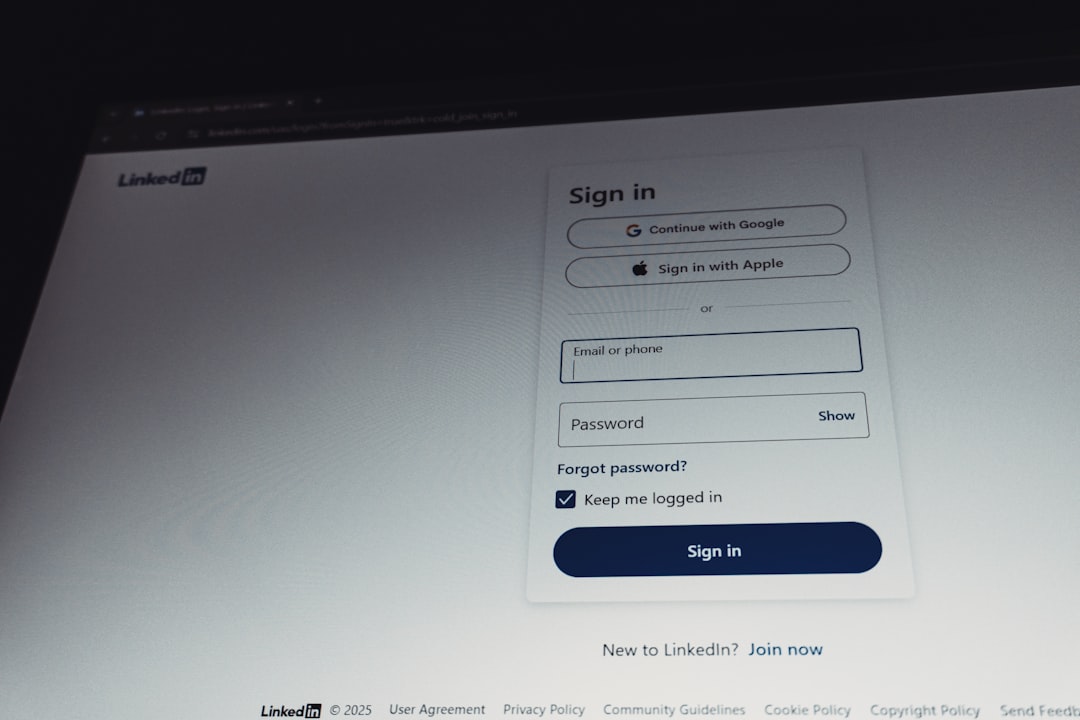
The most common login method is the standard email and password process. A user can follow these steps:
- Open a trusted browser: The user should open a modern browser such as Chrome, Safari, Firefox, or Edge.
- Go to the Klaviyo login page: They can visit Klaviyo’s main website and select the login option, or go directly to the app login page if it has been bookmarked.
- Enter the account email address: The email must match the address used to create the Klaviyo profile or the address that received the account invitation.
- Enter the password: If password login is enabled, the user types the password associated with that email address.
- Complete any security prompt: If two-factor authentication is required, the user enters the code from the authentication app, SMS, or other configured method.
- Access the dashboard: After successful authentication, Klaviyo loads the account dashboard or prompts the user to select an account if they have access to more than one.
Once inside the platform, the user may see campaign metrics, recent activity, flows, ecommerce integrations, or the main navigation menu. The exact view depends on the account setup and the user’s permissions.
Logging In with Google or Single Sign-On
Some Klaviyo users may not use a traditional password. Instead, their organization may allow or require login through Google sign-in or single sign-on. These methods are common for companies that want centralized identity management and stronger security controls.
If Google sign-in is available, the user selects the Google option on the login screen and chooses the correct Google account. If the selected Google account matches an authorized Klaviyo user, access continues. If it does not match, Klaviyo may reject the login or ask for a different email address.
With single sign-on, the user is usually redirected to the company’s identity provider. This might be a corporate login page managed by an IT department. After the user successfully signs in there, they are redirected back to Klaviyo. In this situation, password resets may need to happen through the company’s identity system rather than through Klaviyo directly.
Two-Factor Authentication and Security Checks
Two-factor authentication, often called 2FA, adds an additional layer of protection. Instead of relying only on a password, Klaviyo may require a temporary code. This code can come from an authentication app or another approved method, depending on the account’s security settings.
If two-factor authentication is enabled, a user should keep access to the configured device or app. Losing access to the authentication method can prevent login, even when the password is correct. In that case, the user may need help from the account owner, an administrator, or Klaviyo support, depending on the recovery options available.
Security checks may also appear when Klaviyo detects unusual login behavior. For example, a login attempt from a new device, new location, or unfamiliar browser may trigger additional verification. These checks are intended to protect the account from unauthorized access.
What to Do If the Password Is Forgotten
If a user cannot remember the password, the best first step is to use the password reset option on the login page. The reset process usually requires access to the email address connected to the Klaviyo user profile. After submitting the email address, the user should check the inbox for a password reset message.
When resetting a password, the user should create one that is both secure and unique. A strong password typically includes a mixture of uppercase letters, lowercase letters, numbers, and symbols. It should not be reused from other services, especially services connected to ecommerce platforms, email providers, or payment tools.
If the password reset email does not arrive, the user should check spam, junk, promotions, and quarantine folders. They should also confirm that the correct email address was entered. In some cases, an organization’s email filtering system may delay or block automated messages, so an administrator may need to review email security settings.
Common Reasons Klaviyo Login Fails
Several issues can prevent a user from logging in, even when they believe the correct details are being used. The most common causes include:
- Incorrect email address: The user may be entering a personal email instead of the business email attached to the account.
- Incorrect password: A saved password may be outdated, especially after a recent reset.
- Browser cache or cookie problems: Old session data can sometimes interfere with login.
- Expired invitation: A new user may be trying to access Klaviyo through an invitation that is no longer valid.
- Missing permissions: The user may not have been added to the correct Klaviyo account.
- SSO mismatch: The company’s identity provider may not recognize the user or may require an internal permission update.
- 2FA access loss: The user may no longer have the phone, app, or device needed to receive the security code.
To troubleshoot, a user can try an incognito or private browser window, clear cookies for Klaviyo, disable interfering browser extensions, or attempt login from another browser. However, if the issue appears related to permissions, invitations, SSO, or two-factor recovery, an account administrator is usually the best first contact.
Logging In After Receiving an Invitation
Many users access Klaviyo for the first time through an invitation sent by an account owner or administrator. The invitation email typically contains a link that allows the recipient to set up access. The user should open the invitation from the same email address that the administrator invited.
If the user already has a Klaviyo profile, they may simply be added to the new account. If they do not have an existing profile, they may be asked to create credentials. After setup is complete, the user can log in normally and select the appropriate account if multiple accounts are available.
Account permissions may vary. For example, one user may have full administrative control, while another may only view campaigns, create flows, or access reporting. If certain features are missing after login, the issue may not be a login problem. Instead, it may be a permissions limitation set by the account owner.
Best Practices for Safe Klaviyo Access
Because Klaviyo can contain customer profiles, revenue data, SMS consent records, and email engagement history, login security should be treated seriously. A user should avoid sharing credentials with coworkers or agencies. Instead, each person should have a separate user profile with the appropriate access level.
Strong security habits include:
- Using a unique password for Klaviyo.
- Enabling two-factor authentication when available.
- Keeping recovery email access secure.
- Removing users who no longer need account access.
- Reviewing permissions for agency partners and contractors.
- Avoiding login from public or untrusted computers.
- Signing out after using shared devices.
Administrators should also review user access periodically. When employees change roles or leave a company, their permissions should be updated or removed promptly. This reduces the risk of unauthorized changes to campaigns, flows, integrations, and customer data.
Accessing Multiple Klaviyo Accounts
Some users, especially agency team members or consultants, may have access to multiple Klaviyo accounts. After login, Klaviyo may display an account selection option or allow switching between accounts from within the platform. The user should confirm that they are working in the correct account before editing campaigns, flows, forms, or settings.
This is especially important when users manage several brands. Sending a campaign from the wrong account, editing the wrong flow, or changing the wrong integration can create confusion and business risk. Clear account names, organized permissions, and careful review before publishing changes can help prevent mistakes.
When to Contact Support or an Administrator
If standard troubleshooting does not solve the login issue, the next step depends on the type of problem. For a company-managed account, the internal Klaviyo administrator should usually be contacted first. That person can confirm whether the user exists, whether the invitation is still active, and whether permissions are correct.
If the problem involves technical access, such as account recovery, two-factor authentication lockout, or a login error that affects multiple users, Klaviyo support may be needed. The user should be ready to provide the email address used for login, a description of the problem, the approximate time it occurred, and any error message shown on screen.
FAQ
How does a user log in to Klaviyo?
A user logs in by visiting the Klaviyo login page, entering the email address connected to the account, and completing the required authentication step. This may include entering a password, using Google sign-in, completing SSO, or entering a two-factor authentication code.
What should happen if a user forgets the Klaviyo password?
The user should select the password reset option on the login page and enter the account email address. If the reset message does not arrive, spam and junk folders should be checked, and the user should confirm that the correct email address was entered.
Can a user log in to Klaviyo with Google?
Some accounts may support Google sign-in. If this option is available, the user can select it and choose the Google account that matches the authorized Klaviyo email address.
Why does Klaviyo ask for a security code?
Klaviyo may ask for a security code when two-factor authentication is enabled or when a login attempt appears unusual. This helps protect the account from unauthorized access.
What if a user no longer has access to the two-factor authentication device?
The user may need help from an account administrator or Klaviyo support. Recovery options depend on the account’s security settings and the user’s role.
Why can a user log in but not see certain features?
The account may have limited permissions for that user. An administrator can review and adjust access levels if additional features or settings are needed.
Can multiple people share one Klaviyo login?
Sharing one login is not recommended. Each person should have an individual user account with permissions appropriate to their role, which improves security and accountability.