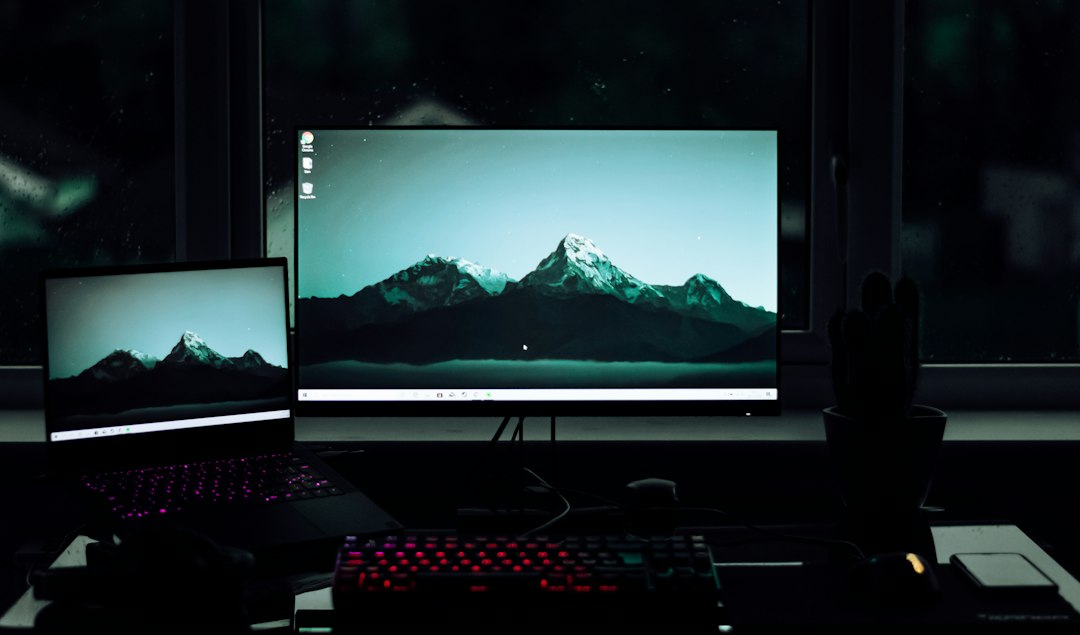
Use Windows Settings for the quick fix, DisplayFusion for deep control, and Dual Monitor Tools when you want a free utility that stays simple. Windows 11 already supports choosing different desktop backgrounds on separate displays through Personalization settings [source: Microsoft]. Still, the built-in method can feel oddly hidden, especially if you expected a big “set wallpaper per monitor” button.
TLDR: If you only need one image on monitor 1 and another on monitor 2, use Settings > Personalization > Background and right-click an image. For example, set a calm 3840 x 2160 nature photo on your main 4K screen and a darker calendar wallpaper on your side 1080p screen. If you change wallpapers often, DisplayFusion saves time with profiles and hotkeys. Dual Monitor Tools is best if you want a free tool without a crowded interface.
Why use different wallpapers on dual monitors?
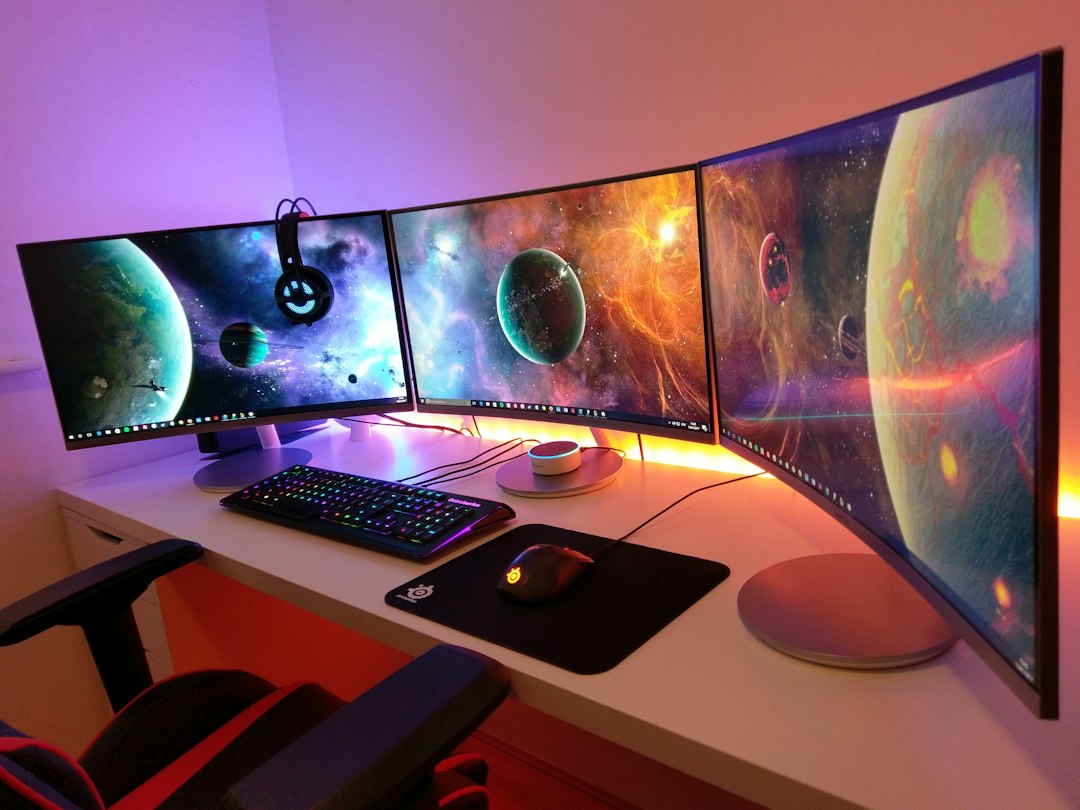
Different wallpapers are not just for looks. They help you separate work zones. Your main screen can show a clean, low-distraction image. Your second screen can show a darker wallpaper, a branded background, a schedule, or even a visual reminder.
Honestly, it feels like Windows makes this feature a little too easy to miss. It is there, but you have to right-click the image thumbnail in the Background menu. That tiny action saves you from using the same stretched photo across two screens, which often looks awful.
Method 1: Set different wallpapers with Windows 11 Settings
This is the fastest method. No extra software. No setup wizard. No background service running.
- Right-click the desktop and choose Personalize.
- Select Background.
- Set Personalize your background to Picture.
- Click Browse photos and add the images you want.
- Right-click one image thumbnail.
- Choose Set for monitor 1 or Set for monitor 2.
If the wrong screen changes, go to Settings > System > Display and click Identify. Windows will show numbers on each monitor. It drives me crazy that this still takes a few extra clicks, but it prevents guessing.
Best for: People who want a simple setup and rarely change wallpapers.
Weak spot: It has limited control. You cannot easily create wallpaper profiles for work, gaming, streaming, or presentations.
Method 2: Use DisplayFusion for full wallpaper control
DisplayFusion is the power-user option. It gives you much more control over dual-monitor wallpapers than Windows Settings. You can assign images per monitor, span one image across both screens, use online sources, save profiles, and fine-tune position settings.
To set different wallpapers in DisplayFusion:
- Install and open DisplayFusion.
- Right-click its system tray icon.
- Choose Desktop Wallpaper.
- Select each monitor preview.
- Pick a separate image for each display.
- Adjust Fill, Fit, Center, or Span.
- Click Apply.
This is where DisplayFusion shines. You can create a clean work profile with muted wallpapers, then switch to a gaming setup with brighter artwork. If you use mismatched monitors, such as one 1440p screen and one 1080p screen, DisplayFusion handles scaling more neatly than Windows in many cases.
Image not found in postmetaBest for: Users who change layouts often, use three or more displays, or want wallpaper profiles.
Weak spot: It can feel like overkill. Expect to waste time on options you may never touch if all you want is two photos on two screens.
Method 3: Use Dual Monitor Tools for a free utility
Dual Monitor Tools is a free, lightweight option. It is not as polished as DisplayFusion, but it gets useful dual-screen jobs done. Its wallpaper tool can place different images on different monitors and create a combined wallpaper file for your desktop.
Basic steps:
- Install Dual Monitor Tools.
- Open the wallpaper section.
- Select your first monitor and choose an image.
- Select your second monitor and choose another image.
- Generate or apply the wallpaper.
The interface is plain. That is not always bad. There are fewer distractions, and the tool does not try to manage every part of your desktop life. If you want something free and practical, it is worth trying.
Best for: Budget setups, older PCs, and users who want a small tool.
Weak spot: It feels dated. Some actions take longer than they should, especially compared with right-clicking an image in Windows Settings.
Which option should you choose?
- Choose Windows Settings if you want the fastest built-in method.
- Choose DisplayFusion if you want profiles, better scaling, hotkeys, and deeper control.
- Choose Dual Monitor Tools if you want a free utility with basic dual-screen wallpaper features.
Quick tips for better results
- Use images that match each monitor’s resolution.
- Pick darker wallpapers for side monitors to reduce distraction.
- Use the same color style across both screens for a cleaner desk.
- Avoid busy images behind desktop icons.
- Use Fill for most photos and Fit for artwork you do not want cropped.
For most people, Windows 11 Settings is enough. For anyone who tweaks their setup weekly, DisplayFusion is the smoother choice. Dual Monitor Tools sits in the middle: free, useful, and a bit old-school. Pick the one that matches how often you change your desktop, not the one with the longest feature list.