Ever feel like your website is sending secret signals into space? Good news. Google Search Console can help you decode them. It shows the real words people type into Google before they find your site. Those words are your keywords.
TLDR: Open Google Search Console and go to Performance. Look at the Queries tab to see the keywords people use to find your site. Check clicks, impressions, average position, and click-through rate. Use that data to improve pages, create new content, and spot easy ranking wins.
What Is Google Search Console?
Google Search Console, often called GSC, is a free tool from Google. It helps you understand how your site appears in Google Search.
Think of it like a dashboard for your website’s search life. It tells you:
- Which searches show your site.
- Which pages get clicks.
- How often your site appears in search results.
- Where your pages rank on average.
- Which keywords need more love.
It is not scary. It just looks a little busy at first. Like a spaceship dashboard. But with fewer lasers.

Why Keywords Matter
Keywords are the words and phrases people type into Google. For example, someone might search for best running shoes, how to bake banana bread, or dog keeps eating socks. Yes, that last one is real life for many dog owners.
When you know your keywords, you know what your audience wants. That is powerful. You can write better content. You can improve old pages. You can answer real questions.
Keywords are not magic spells. But they are close. Use the right ones, and your pages can become easier to find.
Step 1: Open Google Search Console
First, go to Google Search Console. Choose your website property from the menu. If you manage more than one site, pick the right one. Do not accidentally study your cousin’s fishing blog when you need your bakery site.
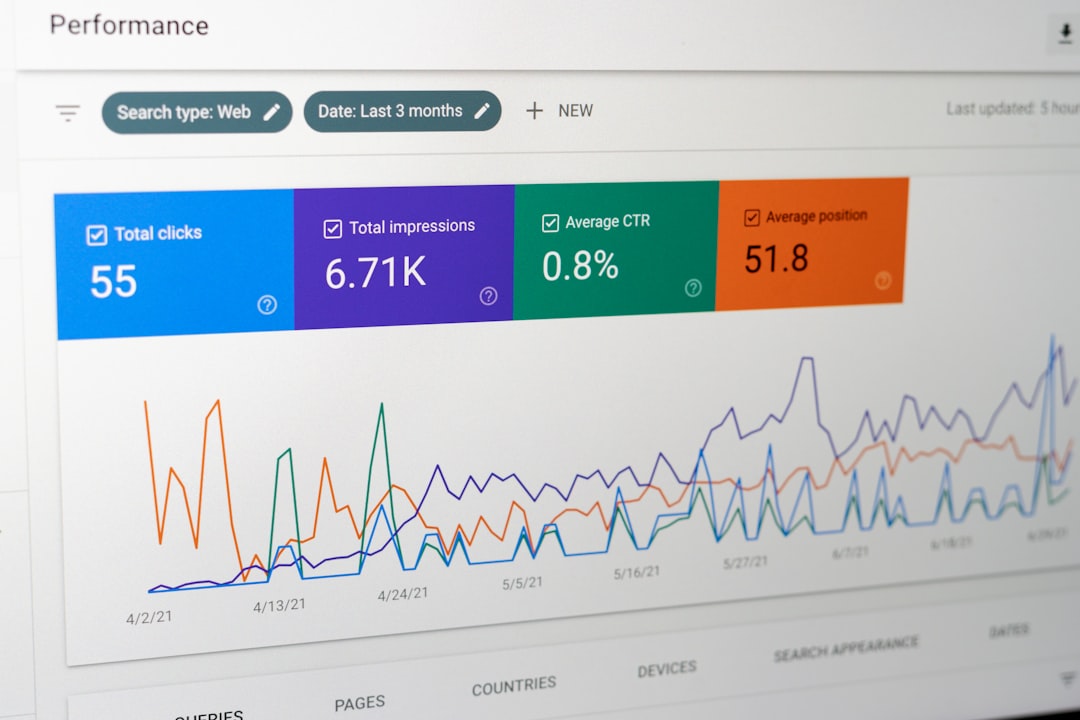
Once inside, look at the left menu. Click Performance. This is where the keyword treasure lives.
You may see a chart with colorful lines. Below that, you will see data tables. Stay calm. No math dragon will attack you.
Step 2: Go to the Queries Tab
In the Performance report, find the tab called Queries. This tab shows the search terms people used before seeing or clicking your site.
These are your keywords. Not guesses. Not wishful thinking. Real search terms from real people.
You will usually see columns like these:
- Clicks: How many people clicked your site from Google.
- Impressions: How many times your site appeared in search results.
- CTR: The percentage of impressions that became clicks.
- Position: Your average ranking spot in Google.
Each number tells a different part of the story. Together, they show you where the opportunities are hiding.
Step 3: Understand Clicks
Clicks are simple. They show how many people clicked your result in Google.
If a keyword has many clicks, that phrase is already working well for you. Give it a high five. Maybe improve the related page even more.
If a keyword has zero clicks, do not panic. It may still be useful. Look at impressions next.
Step 4: Look at Impressions
Impressions show how often your site appeared in search results for a keyword.
This is where things get fun. A keyword with lots of impressions but few clicks is like a shop window that many people see, but nobody enters. The window may need better lights. Or a sign that says, “Free cookies.”
In search terms, this usually means your title or meta description could be better. Make it clearer. Make it more helpful. Make it worth clicking.

Step 5: Check Average Position
Average position shows where your page usually ranks in Google for a keyword.
A position of 1 means you are near the top. Nice. A position of 8 means you are still on page one. Also nice. A position of 28 means you are somewhere deeper in the search jungle.
Look for keywords in positions 8 to 20. These are often great targets. They are already close. A few content improvements may push them higher.
Try this:
- Find a keyword with many impressions.
- Check if the position is between 8 and 20.
- Open the page that ranks for it.
- Add better answers, examples, or sections.
- Make the title more specific.
This is called an easy win. It is like finding money in an old jacket pocket.
Step 6: Use the Pages Tab
The Queries tab shows keywords. The Pages tab shows pages. You need both.
Click the Pages tab. Choose a page. Then click back to Queries. Now you can see the keywords for that one page.
This is very useful. It tells you what Google thinks the page is about. Sometimes Google gets it right. Sometimes it surprises you.
For example, you may have a page about healthy lunch ideas, but people find it by searching quick lunch for work. Great. Add a section about quick work lunches. That matches what people want.
Step 7: Change the Date Range
At the top of the Performance report, you can change the date range. The default is often 3 months.
Try different ranges:
- Last 7 days: Good for fresh trends.
- Last 28 days: Good for recent performance.
- Last 3 months: Good for stable patterns.
- Last 12 months: Good for seasonal topics.
If your site is about Halloween costumes, the yearly view matters. If your site is about daily news, recent data matters more.
Step 8: Filter Like a Detective
Filters help you find better keyword clues. Click + New near the top of the report. You can filter by query, page, country, device, and more.
Here are simple ways to use filters:
- Filter queries containing how to find question keywords.
- Filter queries containing best to find buying intent.
- Filter by country to see where traffic comes from.
- Filter by page to study one article or landing page.
- Filter by device to compare mobile and desktop users.
Filters turn a big pile of data into a small pile of useful clues. Very detective. Very magnifying glass.

Step 9: Export Your Keywords
If you want to sort and study keywords more deeply, export the data. Look for the Export button in the top right.
You can send the data to Google Sheets, Excel, or download a CSV file. This is handy when you want to group keywords, make notes, or share findings with a team.
Do not export everything just to feel fancy. Export when you have a reason. Spreadsheets are useful. But they can also become digital junk drawers.
What Keywords Should You Look For?
Not all keywords are equal. Some are shiny but useless. Some look small but bring great visitors.
Look for these types:
- High impressions, low clicks: Improve titles and descriptions.
- Positions 8 to 20: Improve the content to climb higher.
- Question keywords: Add clear answers to your pages.
- Commercial keywords: Create helpful product or service pages.
- Brand keywords: Make sure your brand results look strong.
Also watch for strange keywords. If people find your site through unrelated searches, your page may be unclear. Or Google may be confused. It happens. Even Google has weird days.
How to Use Keywords After You Find Them
Finding keywords is only step one. Using them is where the magic happens.
Here are smart next steps:
- Add missing topics to existing pages.
- Rewrite weak headings.
- Make page titles more clickable.
- Add short answers near the top of articles.
- Create new articles for keywords that need their own page.
- Link from older pages to newer related pages.
Do not stuff keywords everywhere. That makes writing sound like a robot fell into a dictionary. Use keywords naturally. Write for people first. Help them fast.
A Simple Keyword Routine
You do not need to live inside Google Search Console. Please go outside sometimes. But a simple routine helps a lot.
Once a month, do this:
- Open the Performance report.
- Check top queries.
- Find high-impression keywords with low CTR.
- Find keywords ranking between 8 and 20.
- Pick three pages to improve.
- Track changes next month.
Small updates add up. SEO is not usually one giant leap. It is more like watering a plant. A slightly nerdy plant.
Final Thoughts
Google Search Console is one of the best places to find keywords because it uses real data from your own site. You are not guessing what people search. You are seeing it.
Start with the Performance report. Study the Queries tab. Compare clicks, impressions, CTR, and position. Then use those clues to improve your pages.
Keep it simple. Look for easy wins. Answer real questions. Make your pages more helpful. Soon your keyword data will feel less like a mystery and more like a friendly map to better traffic.