The email subject field means the same basic thing in Gmail and Outlook: it is the short header line that tells recipients what the message is about before they open it. The difference is how each platform displays, groups, searches, filters, and sometimes shortens that subject. If you write email for work, support, sales, or operations, you should treat the subject as a control signal, not just a title.
TLDR: Gmail and Outlook both read the subject as the email’s main visible label, but they handle it differently in inbox views, conversation threads, search, and rules. For example, a support team receiving 800 tickets per week may lose time if subjects like “Question” or “Update” are used instead of “Invoice 4821 payment issue”. In Gmail, poor subjects can make threads messy; in Outlook, they can break rules, folders, and conversation grouping. A clear subject can cut sorting time by minutes per message, which adds up fast across a team.
What the email subject field actually means
The subject field is part of the email header. It is not the message body. It is not a file name. It is not a hidden tracking tag. It is the visible text that appears beside the sender name in most inboxes.
Its job is simple:
- Identify the topic of the message.
- Help the recipient decide priority before opening it.
- Support search and filtering inside the email client.
- Group related replies into conversation threads.
- Reduce confusion when many people are copied.
Most email systems store the subject in a header line called Subject:. Gmail, Outlook, Apple Mail, and other clients all read that same field. The meaning is universal. The user experience is not.
Gmail vs Outlook: same subject, different behavior
Gmail and Outlook process email subjects through their own interface choices. That is where confusion starts. A message with the same subject can look cleaner in Gmail and more structured in Outlook, or the reverse, depending on the mailbox setup.
| Feature | Gmail | Outlook |
|---|---|---|
| Inbox display | Shows sender, subject, and a body snippet together. | Shows sender, subject, preview text, date, and often category or flag data. |
| Threading | Strong conversation grouping by default. | Conversation view exists, but many business users disable or customize it. |
| Rules and filters | Uses filters with subject conditions. | Uses rules that often depend on exact subject text or keywords. |
| Search | Very forgiving and fast with operators like subject:. |
Powerful, especially in Microsoft 365, but results can vary with indexing. |
How Gmail understands subject lines
Gmail treats the subject as a key part of the conversation. If several messages share the same or related subject, Gmail may group them into one thread. That is useful when a team discusses one issue. It is annoying when the subject is too broad.
For example, if five departments use the subject “Monthly report”, Gmail may place related replies in long conversations that are hard to scan. The catch is that one careless subject can turn a clean thread into a junk drawer.
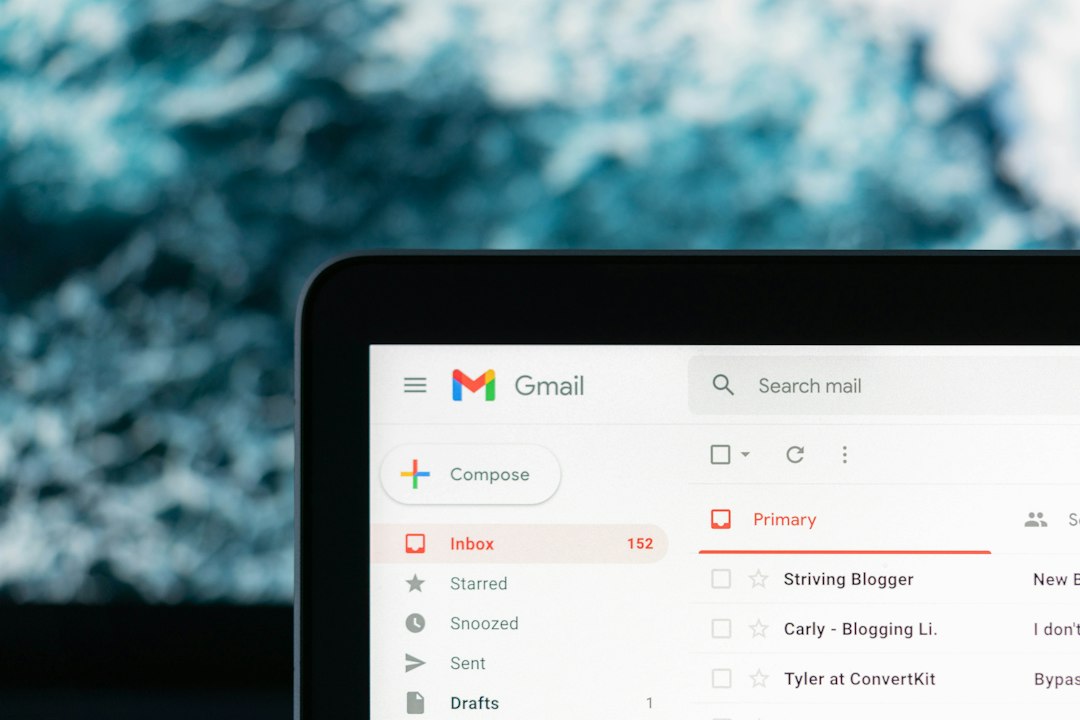
Gmail also shows a snippet from the message body after the subject. This means the subject does not work alone. A vague subject may still be rescued by a clear first sentence, but that is not something to rely on.
Useful Gmail subject tools include:
subject:search operator, such assubject:invoice.- Filters that label or archive messages based on subject words.
- Conversation view, which groups related messages.
- Tabs, such as Primary, Promotions, and Updates, which can affect visibility.
Gmail users should avoid repeat subjects that say nothing. “Follow up” is weak. “Follow up on Q3 vendor contract approval” is much better.
How Outlook understands subject lines
Outlook often treats the subject as a more formal sorting field. In many workplaces, Outlook is tied to Microsoft 365, Exchange, shared mailboxes, retention rules, categories, and compliance policies. That makes the subject more than a label. It can become part of a workflow.
Outlook rules can move messages into folders when the subject contains certain words. Shared mailboxes may use subject tags like [Billing], [HR], or [Client]. Project teams may use ticket numbers in the subject so emails match records in a CRM or service desk.
Honestly, it feels like Outlook can punish sloppy subjects more than Gmail. A missing keyword can send a message to the wrong folder or leave it sitting unnoticed in a crowded inbox. Even a small wording change can break a rule if the setup is too strict.
Outlook also supports conversation view, but many users turn it off because it can feel crowded in enterprise mailboxes. When conversation view is off, the subject becomes even more critical because each message stands on its own.
Why subject lines affect email threads
Email thread grouping is not based only on the visible subject. Behind the scenes, email clients may also use message IDs and reference headers. Still, the subject matters a lot. If someone changes the subject halfway through a discussion, the thread may split. If they reuse an old thread for a new topic, the conversation may become misleading.
That second mistake is common. Someone opens an old email about “April invoice”, hits reply, and writes about a new contract. The recipient sees the old subject and files it incorrectly. Expect to waste time on cleanup when this happens in shared inboxes.
Best practices for Gmail and Outlook subjects
A good subject should be specific, short, and action oriented. It should help a human and a software rule understand the message quickly.
Use this structure when possible:
- Topic: What is the message about?
- Context: Which client, order, project, or date?
- Action: What needs to happen?
Strong examples include:
- “Approve revised contract for Miller account by Friday”
- “Invoice 4821 missing purchase order number”
- “Q2 hiring plan feedback needed by 3 PM”
- “Server maintenance notice for 12 October”
Weak examples include:
- “Hi”
- “Question”
- “Important”
- “Update”
- “Please read”
These weak subjects create extra work. They also look suspicious in some contexts. Phishing emails often use urgent but vague subjects, such as “Action required” or “Account notice”. A precise subject builds trust before the email is opened.
Subject length in Gmail and Outlook
There is no single perfect length, but shorter is usually safer. Mobile inboxes may show only 30 to 40 characters. Desktop views may show much more, depending on window width and layout.
A practical target is 40 to 70 characters. That gives enough room for meaning without burying the key point. Put the most important words first. For example, write “Payment overdue for invoice 4821”, not “Following up regarding the matter of invoice 4821 payment status”.
Common subject prefixes: Re, Fwd, and tags
Re: usually means the message is a reply. Fwd: means the message was forwarded. Gmail and Outlook both recognize these common prefixes, though formatting can vary by language and system settings.
Business teams often add bracketed tags. These can be useful:
- [Urgent] for time-sensitive items.
- [Legal] for department routing.
- [Ticket 18392] for support tracking.
- [External] for messages from outside the company.
Use tags with care. If every message is marked [Urgent], none of them are urgent. That habit trains people to ignore the subject line.
Security and compliance concerns
Email subjects are often visible in notifications, lock screens, logs, and shared inboxes. Do not place sensitive data in them. This includes full Social Security numbers, medical details, passwords, private legal claims, or confidential deal terms.
A safer subject is “Benefits document ready for review”, not “John Smith medical leave approval for anxiety treatment”. The message body can carry sensitive context if the system is approved for it. The subject should stay restrained.
Practical recommendation
For Gmail, write subjects that keep threads clean and searchable. For Outlook, write subjects that also support rules, folders, categories, and shared mailbox handling. In both platforms, the best subject answers one question fast: Why should the recipient care about this email?
If you manage a team, create a short subject standard. Use ticket numbers, client names, dates, and action words. Ban vague subjects for operational work. This small habit prevents missed messages, broken filters, and long searches that should never have been needed.