
The fastest fix is to prove the traffic is human, then remove the thing making the browser or network look automated. Google shows the “Our systems have detected unusual traffic” page when searches from a device, browser, VPN, or shared network resemble automated requests, according to Google Search Help [source: Google].
TLDR: A user should first complete the CAPTCHA, then disable VPNs, suspicious extensions, and proxy settings. Next, they should clear browser data, test another browser, and check DNS with tools such as nslookup, dig, or DNS leak tests. For example, an office with 25 laptops using one VPN exit IP can look like one machine sending hundreds of searches, which may trigger the warning. In many cases, the fix takes under 10 minutes if the cause is a bad extension or overloaded VPN IP.
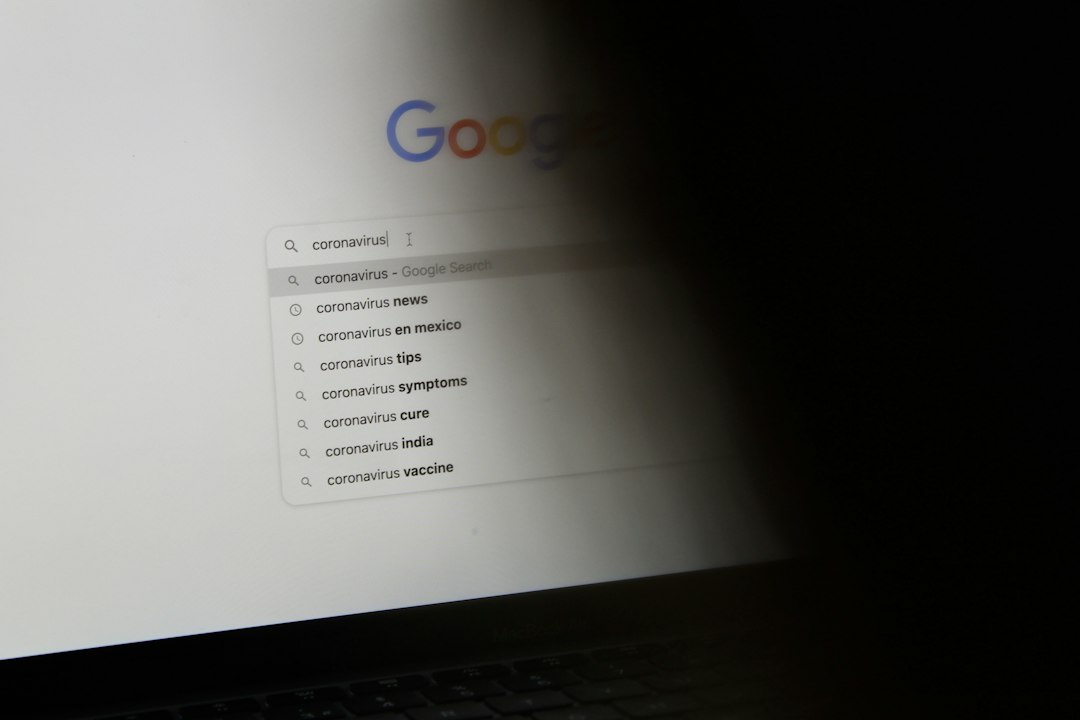
What This Error Usually Means
This error does not always mean a device is hacked. It means Google sees traffic that looks strange. That may come from a browser, an IP address, a VPN, a DNS resolver, malware, or a shared network.
The annoying part is that the message is vague. It drives people mad because a search that took one second now takes 30 seconds, plus a CAPTCHA, plus a second guess about whether the laptop is infected.
Common causes include:
- VPN or proxy use, especially free or crowded services.
- Too many searches too fast from one IP address.
- Browser extensions making background requests.
- Malware or adware sending traffic without the user knowing.
- Shared Wi Fi in offices, schools, hotels, or apartments.
- DNS issues that route requests through odd resolvers.
Step 1: Complete the CAPTCHA and Slow Down
If the CAPTCHA appears, the user should complete it first. That tells Google the current session is human. If the message comes back at once, something else is still causing the issue.
They should also stop repeated searches for a few minutes. Search tools, rank checkers, scraping tools, and browser automation scripts can trigger blocks fast. Even a harmless tab reloader can look suspicious.
Step 2: Turn Off VPNs, Proxies, and Traffic Filters
A VPN is often the main cause. Many people can share the same VPN server. If one person abuses that IP address, everyone using it may see the warning.
The user should:
- Turn off the VPN.
- Close the browser fully.
- Open it again and search on Google.
- Try a different VPN region only if VPN use is required.
Proxy settings should also be checked. On Windows or macOS, an unknown proxy can hijack traffic. If the user did not set it, it should be removed.
Step 3: Test the Browser the Simple Way
The browser is the next place to check. Extensions can inject ads, track searches, or call outside servers. Honestly, it feels like one tiny coupon add on can waste half an afternoon.
The user should try this order:
- Open a private window. If the error stops, cookies or extensions may be involved.
- Disable all extensions. Then turn them back on one at a time.
- Clear cookies and cache. Remove Google cookies if the issue is limited to Google.
- Update the browser. Old builds may behave badly with security checks.
- Try another browser. If Chrome fails but Firefox works, the problem is likely browser based.
Step 4: Scan for Malware and Adware
If the warning appears across browsers, the device may be sending traffic in the background. A malware scan is a smart move. The user should run a full scan with trusted security software.
They should also check recently installed apps. Free download managers, browser toolbars, fake PDF tools, and cracked software are common troublemakers. If the issue started after a new install, that app deserves suspicion.
Step 5: Use DNS Tools to Find Weird Routing
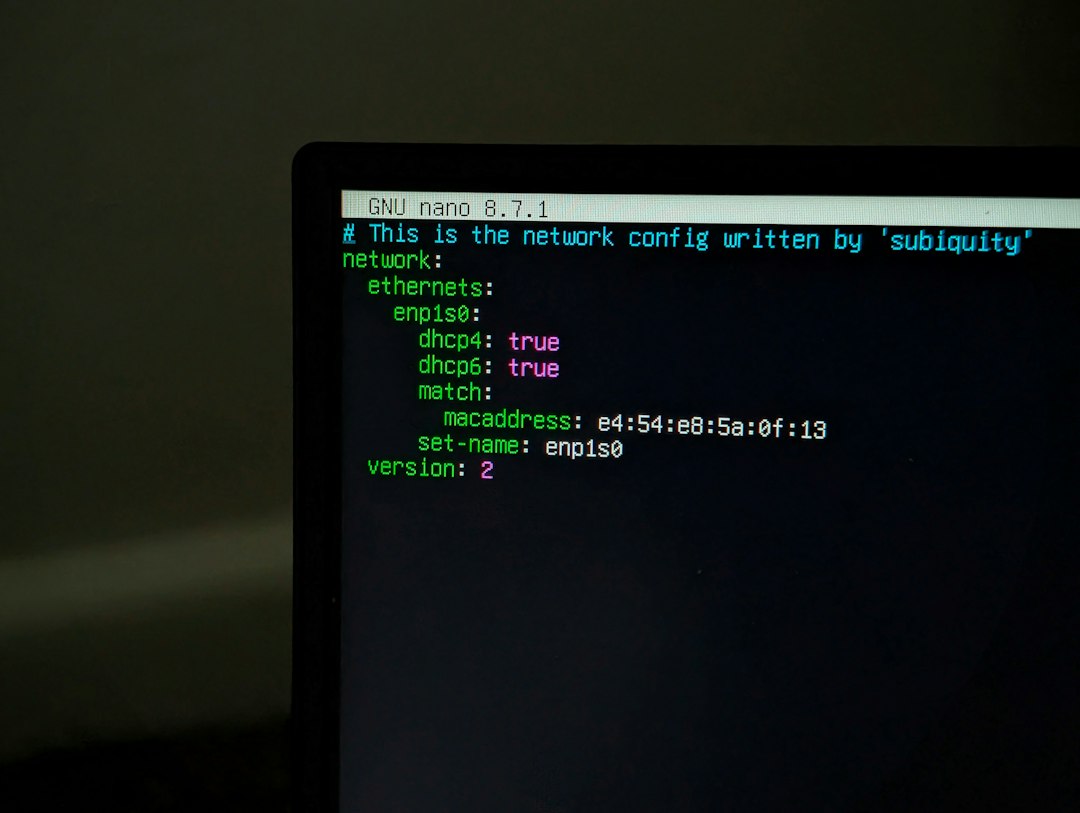
DNS turns a domain name into an IP address. If DNS is changed by malware, a bad router setting, or a shady app, traffic may pass through systems that raise flags.
Useful checks include:
- DNS leak test: Shows which DNS provider handles requests.
- nslookup google.com: Works on Windows, macOS, and Linux.
- dig google.com: Common on macOS and Linux.
- Router DNS settings: Confirms the whole network is not using an unknown resolver.
If the DNS provider looks unfamiliar, the user can switch to a trusted public resolver or their ISP DNS. After changing DNS, the device and router should be restarted.
Step 6: Flush DNS and Reset Network Settings
Old DNS records can stick around. A flush can clear bad cached results.
Windows:
ipconfig /flushdnsipconfig /releaseipconfig /renew
macOS:
sudo dscacheutil -flushcache; sudo killall -HUP mDNSResponder
Linux:
sudo resolvectl flush-caches
After that, the user should restart the browser and test Google again.
Step 7: Check the Router and Shared Network
If several devices see the same error, the issue is probably the network. The router may have bad DNS settings, unknown devices, or old firmware.
The user should check:
- Connected devices on the router.
- Router DNS servers.
- Firmware updates.
- Wi Fi password strength.
- Guest network activity.
If unknown devices appear, the Wi Fi password should be changed. Old guest access should be removed. A router reboot can help, but it should not be the only fix.
When the ISP or Admin Must Help
Some users cannot fix this alone. Schools, companies, apartments, and mobile carriers often share public IP addresses across many people. If one IP has a bad reputation, many innocent users may get blocked.
In that case, the network admin or ISP should check for infected devices, high search volume, proxy abuse, or NAT issues. A new public IP may also help, but only if the cause is gone.
FAQ
Why does Google say there is unusual traffic?
Google sees search behavior that looks automated. It may come from a VPN, shared IP address, extension, malware, or network tool.
Is the device hacked if this message appears?
Not always. Many cases are caused by VPNs or shared networks. Still, a malware scan is wise if the warning keeps returning.
Can DNS cause this Google error?
Yes. Bad DNS settings can route traffic through strange resolvers or infected routers. DNS checks help confirm whether requests are going where they should.
What is the quickest browser fix?
The quickest test is private mode with extensions disabled. If Google works there, cookies or extensions are likely involved.
Why does the error appear only on one Wi Fi network?
That network may share an IP with many users, use a risky proxy, or have an infected device sending traffic. Router and DNS checks should come next.