Hold the Fn key, or the Globe key on newer models, to show F1 through F12 on a MacBook Pro Touch Bar. Apple confirms that the Touch Bar can display the traditional function keys when you press and hold that key [source: Apple]. If you use apps like Excel, Photoshop, Terminal, or older business software, this is often the fastest fix.
TLDR: Press and hold Fn or Globe to show the function keys on the Touch Bar. To make them stay visible in a specific app, go to System Settings and change the keyboard options for that app. For example, if you press F5 to refresh reports 30 times a day, pinning the function keys can save you from 30 extra taps or pauses. It is a small setting, but it removes a lot of friction.
What the Touch Bar Does With Function Keys
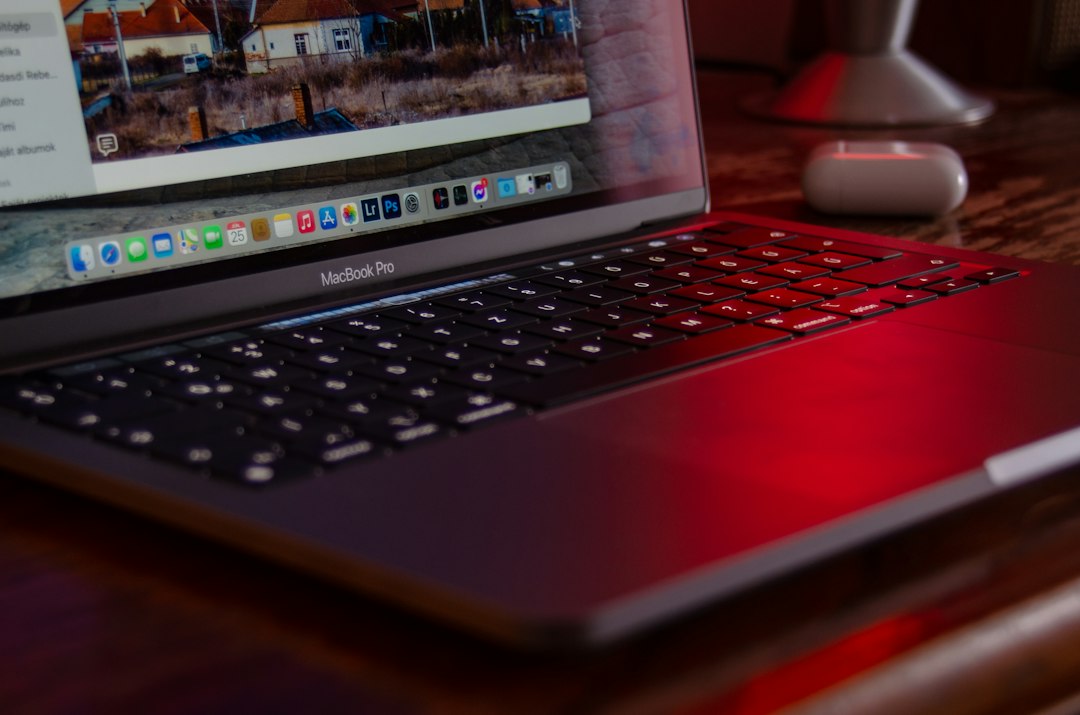
The Touch Bar replaced the physical row of keys found on many older MacBooks. That row had Esc, F1, F2, and the rest of the function keys. On Touch Bar models, those keys are software buttons instead.
By default, the Touch Bar usually shows app controls. In Safari, it may show tabs. In Mail, it may show reply buttons. In Photos, it may show editing tools. That sounds useful, and sometimes it is. The catch is that many people still need plain old F keys, especially at work.
Function keys still matter because many apps use them for shortcuts. F2 may rename a file. F5 may refresh data. F10 may trigger a tool in a specialist app. If the Touch Bar hides them, you lose time.
How to Show Function Keys Temporarily
This is the quickest method.
- Open the app where you need the function keys.
- Press and hold the Fn key or Globe key.
- Look at the Touch Bar.
- Tap F1, F2, F3, or the key you need.
- Release the key when you are done.
This works well if you only need an F key now and then. It is not ideal if you use them all day. Honestly, it feels like an extra step that should not be there when you are trying to move fast.
How to Keep Function Keys Visible for One App
If one app depends on F keys, make macOS show them every time that app is active. This is the more serious setup for work use.
- Open System Settings.
- Go to Keyboard.
- Find Touch Bar settings or Keyboard Shortcuts, depending on your macOS version.
- Choose the option for Function Keys.
- Add the app that should always show F1, F2, F3, and so on.
After that, macOS should show the function keys in the Touch Bar whenever you use that app. When you switch back to another app, the Touch Bar can return to its normal controls.
How to Change the Default Touch Bar Behavior
You can also change what the Touch Bar shows most of the time. This is useful if you rarely use app controls and prefer a more predictable keyboard.
Look for a setting called Touch Bar shows. The exact wording may vary by macOS version. Common choices include:
- App Controls: shows controls for the current app.
- Expanded Control Strip: shows brightness, volume, media, and similar controls.
- F1, F2, etc. Keys: shows the traditional function keys.
- Quick Actions: shows shortcuts you set up yourself.
If your Mac offers F1, F2, etc. Keys as a default option, choose it if you want the closest thing to a normal keyboard. If not, use the app-specific method above.
What About the Esc Key?
On many Touch Bar MacBook Pro models, Esc is also part of the Touch Bar. On later models, Apple brought back a physical Esc key. If your Esc key is virtual, it should appear on the far left of the Touch Bar.
If an app freezes and the Touch Bar does not respond, press Command + Option + Esc to open the Force Quit window. If the Touch Bar itself acts strange, restarting the Mac often fixes it. You can also restart the Touch Bar process through Activity Monitor, but most users should try a restart first.
Common Function Key Uses
Here are practical cases where keeping F keys visible makes sense:
- Spreadsheets: refresh data, edit cells, repeat actions, or use add-ins.
- Development tools: run code, step through debugging, or open panels.
- Remote desktops: send F-key commands to Windows or Linux systems.
- Creative apps: trigger tools, macros, or custom shortcuts.
- Business software: use older systems that still depend on F-key commands.
Remote desktop users should pay close attention here. A Windows app may expect F5, F8, or F12. If macOS captures the key first, the command may not reach the remote computer. In that case, set the remote desktop app to always show function keys.

Tips That Prevent Daily Annoyance
- Use app-specific settings for tools you use for hours at a time.
- Memorize the Fn or Globe shortcut for quick one-off commands.
- Check your app shortcuts if an F key does nothing.
- Use an external keyboard if you work at a desk all day.
- Keep macOS updated if the Touch Bar becomes slow or unreliable.
It drives me crazy that one hidden setting can make a professional app feel broken. But once the function keys are pinned where you need them, the Touch Bar becomes much less annoying. The best setup is simple: temporary access for casual use, app-specific function keys for serious work, and an external keyboard when speed matters most.