Choose Clideo if you only need to reverse a short video fast; choose Kapwing if you want to reverse it and keep editing. That is the cleanest way to split the decision. Reversed clips are popular because they create an instant visual hook, and short videos keep winning attention: Wyzowl reports that people watch an average of 17 hours of online video per week [source: Wyzowl]. So yes, reversing a splash, jump, pour, fall, or reveal can be more than a gimmick. It can be the three-second trick that stops the scroll.
TLDR: Clideo is better for quick, single-purpose reversing because the tool is simple, direct, and easy to understand. Kapwing is better if your reversed clip needs text, resizing, captions, memes, music, or social edits afterward. For example, if a creator has a 12-second product pour clip and needs a reversed version for TikTok in under two minutes, Clideo is the easier pick. If that same creator also needs a 9:16 layout, subtitles, a logo, and a trimmed intro, Kapwing saves more time overall.
Quick verdict: Clideo vs. Kapwing
Both tools reverse videos online. Both work in a browser. Both are friendly enough for casual users. The difference is scope.
Clideo feels like a focused utility. You upload a file, reverse it, adjust a few simple settings, then export. It is not trying to be your full content studio.
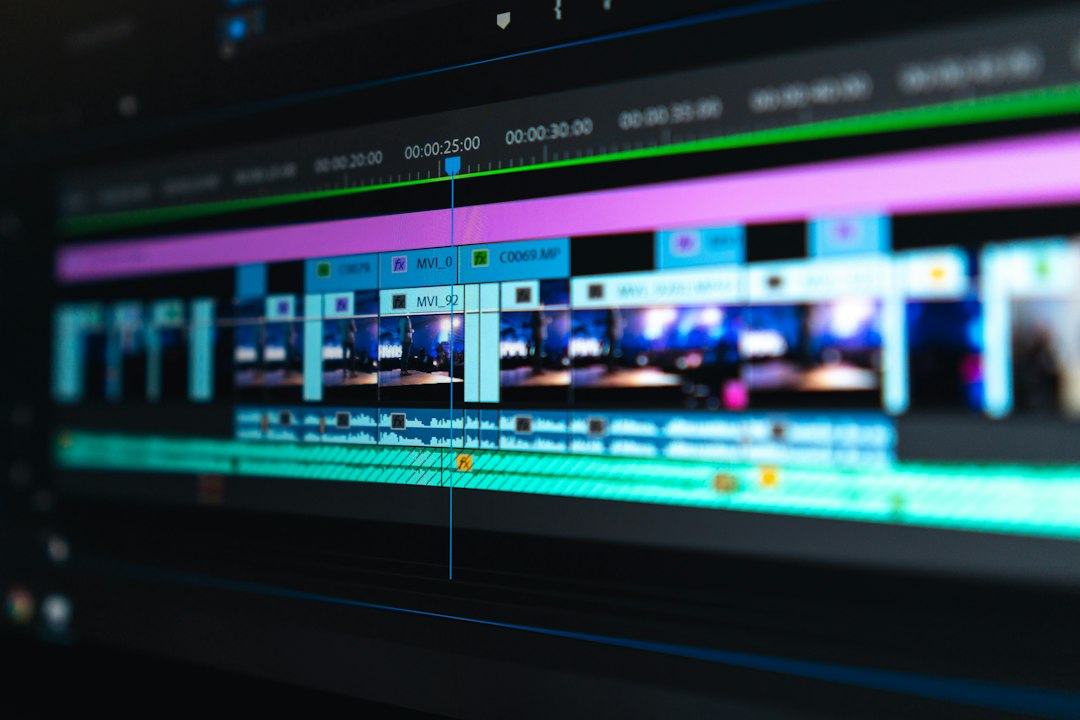
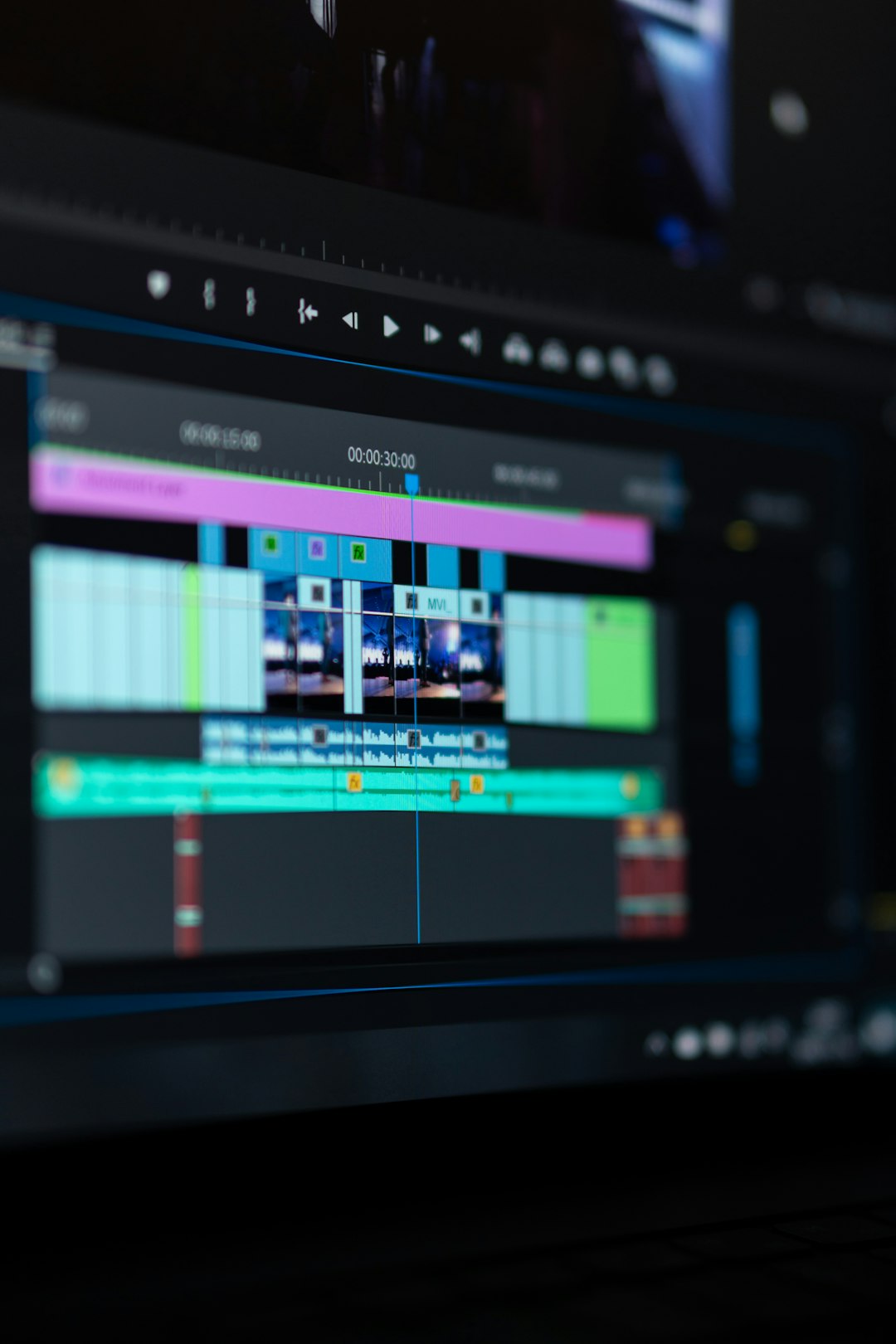
Kapwing feels like an editor that happens to include video reversing. You can reverse the clip, then resize it, add captions, stack layers, add audio, trim footage, and prepare it for YouTube Shorts, Instagram Reels, TikTok, or a website.
The catch is that more tools also mean more panels, more prompts, and more small decisions. If you only want one reversed clip, that can feel like extra friction.
What Clideo does best
Clideo is the better choice when speed matters more than control. Its video reverser is built around one job: flip playback from end to start. That makes it ideal for quick visual effects, funny clips, and basic social posts.
- Best for: simple reverse effects with minimal setup.
- Learning curve: very low.
- Editing depth: basic.
- Workflow: upload, reverse, preview, export.
Clideo also makes sense for people who do not edit video often. You do not need to understand layers, timelines, or aspect ratios before getting a result. That matters. Many “simple” online editors bury the one button you need under six menus. It drives me crazy that a 10-second task can turn into a tour of someone’s entire software suite.
With Clideo, the experience is closer to using a file converter. Pick your clip. Apply the reverse effect. Download the result. For a short video of a dog jumping into a pool, a skateboard trick, a glass filling up, or confetti falling, that is usually enough.
Where Clideo falls short
Clideo is not the best pick if you want to build a polished video around the reversed clip. You may be able to make basic adjustments, but it does not feel like a full production workspace. If you need a title card, captions, branded colors, sound effects, multiple clips, or several export ratios, expect to use another editor afterward.
That is the main tradeoff. Clideo is fast because it is narrow. For some people, that is perfect. For others, it means an extra step.
Also, like many browser-based tools, free exports may include limits, compression, sign-in prompts, or branding depending on the current plan. Always check the export screen before spending time on a larger clip.
What Kapwing does best
Kapwing is stronger when the reversed video is just one part of the final version. You can reverse a clip, then keep working in the same editor. That is the big advantage.
- Best for: social videos, memes, tutorials, ads, and branded clips.
- Learning curve: moderate, but still beginner-friendly.
- Editing depth: much deeper than Clideo.
- Workflow: upload, edit on a timeline, reverse, enhance, export.
Kapwing is useful when you need to turn one raw video into several versions. Say you filmed a coffee splash in horizontal format. You want a reversed version for TikTok, a square version for Instagram, and a captioned version for a product page. Kapwing handles that kind of job better because the reverse effect sits inside a broader editing workflow.
You can also add text overlays, cut dead space, adjust timing, include music, and match the clip to a template. That makes it more useful for creators, marketers, teachers, and small teams.

Where Kapwing can annoy you
Kapwing has more power, but it can feel heavier. A simple reverse task may take longer because you are entering a full editor rather than a single-purpose tool. There may be account prompts, processing waits, project screens, and export options to deal with.
Honestly, it feels like overkill when your only goal is to reverse a five-second clip of someone tossing a hat. That does not mean Kapwing is bad. It means the tool is better matched to projects that need extra editing.
Kapwing’s free plan may also come with limits, depending on export length, quality, watermark rules, or account status. These conditions can change, so review the current pricing page before using it for client work, ads, or high-volume posting.
Speed comparison: which one reverses faster?
For basic reversing, Clideo usually feels faster. The interface has fewer distractions. You can move from upload to export with fewer choices. If your file is small and your internet connection is stable, the process can feel almost instant.
Kapwing may take longer at the start, but it can save time later. If you know you will add subtitles, resize the canvas, trim the clip, and add music, doing it all in Kapwing may be quicker than bouncing between tools.
A practical rule works well:
- One reverse effect only: use Clideo.
- Reverse plus edits: use Kapwing.
- Reverse plus team review: Kapwing is usually better.
- Reverse a quick meme: Clideo is usually enough.
Output quality and file handling
Both tools depend on upload speed, file size, browser performance, and export settings. A tiny phone clip will process much faster than a large 4K recording. That sounds obvious, but it is where many users get stuck.
If you upload a 600 MB video, do not expect the same speed as a 20 MB clip. Browser tools need time to upload, process, and encode the file. If the clip is too large, trim it first. You can save minutes.
For social media, most users do not need massive 4K exports. A clean 1080p reversed clip is usually enough for TikTok, Reels, Shorts, and web posts. If your video includes tiny product details, fine text, or screen recordings, check the exported file before publishing.
Privacy and uploads
Both Clideo and Kapwing are online tools, so you upload files to their servers for processing. That is convenient, but it also means you should be careful with sensitive footage.
A reversed product demo is fine. A confidential meeting recording is not. Private client footage, unreleased campaign material, medical clips, legal content, and internal company videos deserve extra caution.
For casual content, browser tools are practical. For sensitive content, local editing software may be safer.
Best use cases for Clideo
- Reversing a short funny clip.
- Creating a quick magic-style effect.
- Flipping a splash, jump, fall, or throw.
- Making a simple social media post.
- Editing without learning a full video editor.
Clideo is the “get it done” option. It is best when the final video does not need much else.
Best use cases for Kapwing
- Reversing a clip for TikTok, Reels, or Shorts.
- Adding captions after reversing.
- Combining reversed and normal playback in one edit.
- Creating branded social videos.
- Preparing multiple formats from one video.
Kapwing is the better creative workspace. It makes more sense when the reversed video is part of a larger idea.
Final recommendation
Use Clideo when you want the fastest path from upload to reversed video. It is simple, clear, and built for one job. That makes it ideal for casual users and quick effects.
Use Kapwing when you want to keep editing after the reverse effect. It offers more creative control, better social formatting options, and a fuller editing process.
The best choice is not about which tool has the longest feature list. It is about how much editing you need after the clip plays backward. If the answer is “none,” Clideo wins. If the answer is “quite a bit,” Kapwing is the smarter pick.