Audio renderer issues on macOS can appear as crackling sound, silence from the wrong device, delayed playback, browser errors such as “Audio renderer error”, or audio apps refusing to start. In most cases, the cause is not hardware failure but a temporary conflict in Core Audio, an incorrect output device, a sample rate mismatch, Bluetooth instability, or a driver problem from an audio interface.
TLDR: Start by checking the selected output device, volume, mute status, and whether headphones or an external interface are connected. Then restart the browser or app, restart Core Audio, and confirm the sample rate in Audio MIDI Setup. If the issue involves Bluetooth or a USB audio interface, reconnect the device, test with built in speakers, and update drivers or firmware. If nothing works, reboot macOS and test in a new user account or Safe Mode to isolate deeper system problems.
Understand What an Audio Renderer Issue Means
On macOS, audio playback is managed mainly through Core Audio, Apple’s system level audio framework. Apps such as Safari, Chrome, Logic Pro, Spotify, Final Cut Pro, Zoom, and media players send sound to Core Audio, which then routes it to speakers, headphones, HDMI displays, Bluetooth devices, or professional audio interfaces.
When an “audio renderer” problem occurs, it usually means the app cannot reliably send audio to the selected device. This can happen if the device is unavailable, another app has locked it, the sample rate is unsupported, the browser has stalled, or an external driver is misbehaving. The fastest troubleshooting method is to move from simple checks to system level fixes in a disciplined order.
1. Check the Obvious Settings First
Before restarting services or reinstalling software, confirm the basics. Many audio issues are caused by macOS routing sound to a device you did not intend to use.
- Open System Settings and go to Sound.
- Select the correct device under Output.
- Check that the output volume is not muted or set too low.
- Disconnect unused headphones, HDMI monitors, docks, or audio interfaces.
- If using an external display, confirm macOS has not selected the display’s speakers.
If you are troubleshooting quickly, switch temporarily to MacBook Speakers or Built in Output. If audio works there, the problem is likely with the external device, cable, Bluetooth connection, dock, or driver rather than macOS itself.
2. Restart the App or Browser
If the error appears only in one app, close that app completely and reopen it. For browsers, do not simply close the tab. Quit the entire browser using Command + Q, then relaunch it.
This is especially important for browser based audio renderer errors in video platforms, meeting tools, online editors, and streaming services. A browser process can lose its connection to Core Audio after sleep, device switching, or Bluetooth reconnection.
Also test the same audio in another browser. For example, if Chrome shows an audio renderer error, try Safari or Firefox. If playback works elsewhere, clear the browser cache, disable audio related extensions, and update the browser.
3. Restart Core Audio Without Rebooting
The quickest serious fix on macOS is often restarting Core Audio. This refreshes the audio service without requiring a full system restart.
To do this using Activity Monitor:
- Open Activity Monitor from Applications > Utilities.
- Search for coreaudiod.
- Select it and click the X button in the toolbar.
- Choose Force Quit.
macOS will automatically restart the service within a few seconds. Afterward, reopen the affected app and test playback again.
You can also do this in Terminal with the following command:
sudo killall coreaudiodEnter your administrator password when prompted. This command is safe in normal use because macOS relaunches the audio daemon automatically. However, save active audio projects first, because professional apps may lose their audio connection temporarily.
4. Check Audio MIDI Setup for Sample Rate Problems
Sample rate mismatches are a common cause of silent playback, distorted sound, or apps refusing to use an audio device. macOS includes a utility called Audio MIDI Setup that lets you inspect and change device formats.
- Open Applications > Utilities > Audio MIDI Setup.
- Select your output device in the left sidebar.
- Look at the Format field.
- Try a standard setting such as 44.1 kHz or 48 kHz.
- Close and reopen the affected app.
For general use, 48 kHz is often reliable for video, calls, and modern playback. 44.1 kHz is common for music. Avoid unusual settings unless your hardware or production workflow specifically requires them.
5. Disconnect and Reconnect External Audio Hardware
If you use a USB, Thunderbolt, or USB C audio interface, unplug it, wait several seconds, and reconnect it directly to the Mac. Avoid testing through a hub or dock at first. Hubs can introduce power, bandwidth, or compatibility problems that appear as audio renderer failures.
For professional audio interfaces, check these points:
- Install the latest macOS compatible driver from the manufacturer.
- Update the device firmware if recommended.
- Confirm the interface is supported on your version of macOS.
- Use a known good cable.
- Test a different USB or Thunderbolt port if available.
If the device has its own control panel, make sure its sample rate matches the macOS setting and the audio app setting. Inconsistent clocking can cause pops, dropouts, or total playback failure.
6. Troubleshoot Bluetooth Audio Separately
Bluetooth audio issues often look like renderer problems because the output device disappears, reconnects slowly, or uses the wrong profile. This is common after waking a Mac from sleep or switching headphones between multiple devices.
To troubleshoot quickly:
- Turn Bluetooth off and on again from System Settings > Bluetooth.
- Forget the headphones, then pair them again.
- Move the headphones closer to the Mac.
- Disconnect the headphones from phones, tablets, or other computers.
- Test with wired headphones or built in speakers.
If audio works over wired output but not Bluetooth, the issue is probably pairing, interference, codec negotiation, or a headset microphone profile. In calls, macOS may switch a headset into a lower quality hands free mode. Selecting the Mac’s internal microphone while keeping the Bluetooth headphones as output can sometimes improve stability and sound quality.
7. Look for App Conflicts and Exclusive Audio Behavior
Some apps take tight control of audio devices. Digital audio workstations, screen recorders, virtual audio routers, meeting apps, and streaming tools can conflict with each other. Examples include apps that create virtual microphones, capture system audio, or apply background noise processing.
Quit nonessential audio apps and test again. Pay special attention to:
- DAWs such as Logic Pro, Pro Tools, Ableton Live, or GarageBand.
- Meeting apps such as Zoom, Teams, Google Meet, or Discord.
- Screen recording and streaming tools.
- Virtual routing tools and third party audio drivers.
- Noise suppression or equalizer utilities.
If the issue started after installing an audio utility, disable or uninstall it temporarily. Use only trusted software from reputable developers, especially when it installs system extensions or audio drivers.
8. Update macOS and the Affected Apps
Audio problems are sometimes fixed through macOS updates, browser updates, or driver revisions. Go to System Settings > General > Software Update and install available updates when practical. Also update the app that is reporting the renderer issue.
For external audio hardware, do not assume macOS updates replace manufacturer drivers. Visit the manufacturer’s support page and confirm compatibility with your exact macOS version, especially after major upgrades.
9. Reboot the Mac When Fast Fixes Fail
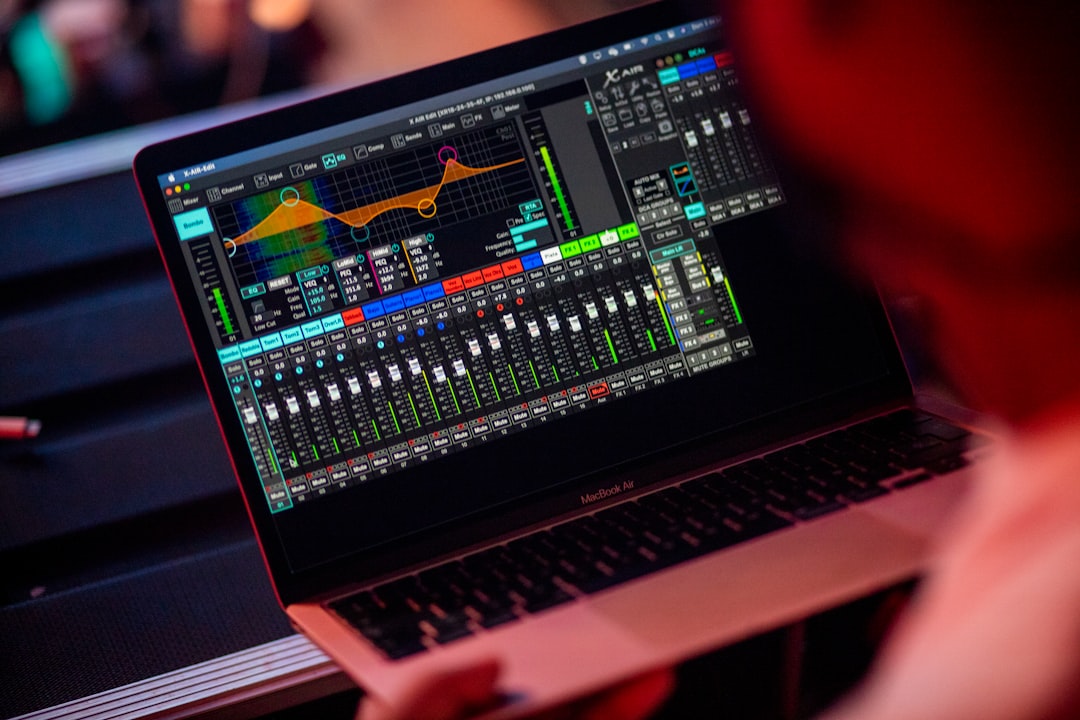
A restart is not elegant, but it is effective. Rebooting clears stuck audio sessions, reloads drivers, resets device enumeration, and closes background processes that may be interfering with playback.
Before restarting, save your work and disconnect unnecessary peripherals. After rebooting, test audio before opening many applications. This gives you a clean baseline and helps identify whether a specific app triggers the problem.
10. Test in Safe Mode or a New User Account
If the problem keeps returning, isolate whether it is system wide or limited to your user profile.
First, create or use another macOS user account and test audio there. If audio works in the new account, the issue may involve your user settings, login items, browser profile, or app preferences.
Safe Mode is also useful because it loads fewer extensions and performs basic system checks. The steps differ between Apple silicon and Intel Macs, so follow Apple’s current instructions for your model. If audio works in Safe Mode but fails during normal startup, a third party extension, login item, or driver may be involved.
11. When to Suspect Hardware
Most renderer issues are software related, but hardware should be considered if problems occur across all apps, all user accounts, and after a clean reboot. Warning signs include damaged ports, intermittent headphone detection, distorted sound from built in speakers at all volumes, or an audio interface that disconnects repeatedly on multiple computers.
Use a simple test: play the same known good audio file through built in speakers, wired headphones, Bluetooth headphones, and any external interface. If only one path fails, focus on that device or connection. If every path fails, the macOS audio subsystem or internal hardware may need deeper service.
Practical Quick Fix Sequence
When you need the fastest possible resolution, follow this order:
- Confirm the correct output device in System Settings > Sound.
- Quit and reopen the affected app or browser.
- Switch to built in speakers to isolate external hardware.
- Restart coreaudiod.
- Check the sample rate in Audio MIDI Setup.
- Reconnect Bluetooth or USB audio devices.
- Update the app, macOS, and any required drivers.
- Restart the Mac.
This sequence solves the majority of macOS audio renderer problems without unnecessary changes or risky repairs.
Final Advice
Audio renderer issues on macOS are usually temporary conflicts rather than permanent failures. The key is to troubleshoot methodically: verify routing, restart the affected software, refresh Core Audio, check sample rates, and isolate external devices. Avoid installing random “fix” utilities or deleting system files. If the problem persists after careful testing, document the devices, apps, macOS version, and exact error message before contacting Apple Support or the hardware manufacturer.