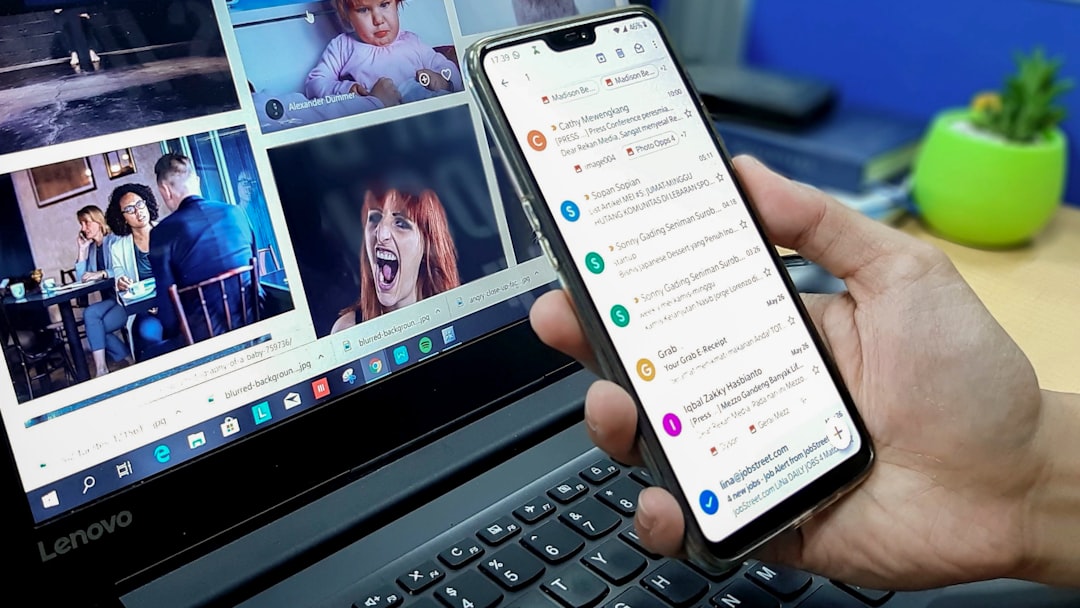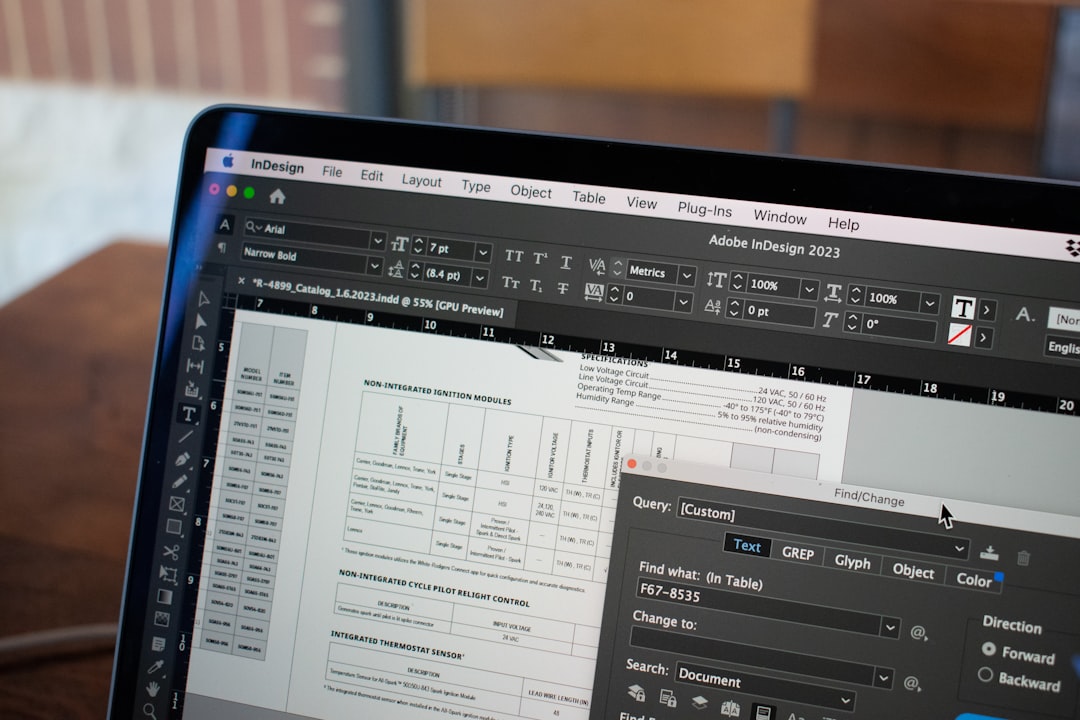
The safest way to add hyperlinks to a PDF is to insert them before export, then verify every clickable area in the final PDF. This keeps links accurate, preserves formatting, and reduces the risk of broken buttons in reports, forms, presentations, and digital guides.
TLDR: Add links in the source file when possible, such as Word, Google Docs, PowerPoint, InDesign, or Canva, then export the file as a PDF with links enabled. If the PDF already exists, use a PDF editor such as Adobe Acrobat, PDF-XChange Editor, Foxit PDF Editor, or a trusted online tool. For example, a 42-page sales report with 18 internal section links and 9 external source links can save readers several minutes per review session. Always test links on desktop and mobile before sending the file to clients, staff, or customers.
Why hyperlinks matter in PDF documents
PDFs are often treated as final, fixed documents. That is useful for layout control, but it can make the file feel stiff. Hyperlinks solve that problem. They let a reader jump to a section, open a source, submit a form, visit a product page, or email a support address with one click.
In a report, links help readers check sources and move between charts. In a form, they can send users to instructions or privacy terms. In a presentation, they can open a case study or booking page. In a digital guide, they turn a flat document into a practical resource.
The catch is that PDF links are easy to miss during review. A text URL may look clickable but do nothing. A button may work on a laptop but fail on a phone. That is why link testing should be part of the final publishing checklist, not an afterthought.

Method 1: Add hyperlinks before exporting to PDF
This is usually the best method. If you still have the original document, add links there first. The export process will carry most links into the PDF, provided you choose the correct settings.
- Select the text, image, shape, or button that should become clickable.
- Insert the link using the application’s link tool. This may be called Hyperlink, Link, or Insert link.
- Choose the link type. Common options include a web page, email address, page in the same file, file download, or document bookmark.
- Check the display text. Descriptive text such as “View the Q3 dashboard” is better than “click here.”
- Export as PDF and keep link options enabled during export.
- Open the PDF and test every link. Do not assume the export worked.
Microsoft Word, Google Docs, PowerPoint, Keynote, LibreOffice, Adobe InDesign, and similar tools can preserve links during PDF export. Problems usually happen when users print to PDF instead of exporting. Printing often flattens interactive items. Exporting is more reliable.
Method 2: Add links directly inside an existing PDF
Sometimes the source file is gone. Or the PDF was sent by a vendor. In that case, use a PDF editor. Adobe Acrobat is the common standard for professional work, but Foxit PDF Editor, PDF-XChange Editor, Nitro PDF Pro, PDF Expert, and other editors can also add links.
The usual workflow is simple:
- Open the PDF in the editor.
- Choose the Edit PDF or Link tool.
- Draw a rectangle over the text, logo, button, or graphic area.
- Set the action, such as opening a web page or jumping to a page.
- Save the file under a new version name.
Honestly, it feels like some PDF editors hide the link tool just to make a 20-second task take three minutes. If you edit PDFs often, learn the exact menu path in your main tool and save it as a note for your team.
Common link types and when to use them
Choose the link type based on the document’s purpose. Each type has a different role.
- External website links: Best for citations, product pages, booking pages, help articles, dashboards, and public resources.
- Email links: Useful in forms, proposal PDFs, support guides, and event packets. Format them as mailto:name@example.com.
- Internal page links: Best for long reports, policy manuals, digital guides, and training materials.
- Bookmark links: Good for structured files with chapters, appendices, and reference sections.
- File links: Useful for internal document packs, but risky for public PDFs because local file paths may break.
For serious business documents, internal links deserve special attention. A board report can include a clickable contents page. A legal guide can link from a summary to exact clauses. A product catalog can link from each category to order forms. The reader should never have to scroll endlessly to find a key section.

Best practices for reports
Reports need clarity. Links should support evidence, not distract from it. Use links for source material, data tables, appendices, dashboards, and related documents.
- Use descriptive link text. Write “Download the audited financial statements” instead of “more.”
- Link chart sources. This helps reviewers confirm numbers quickly.
- Create a linked table of contents for any report longer than 10 pages.
- Keep URLs clean. Long tracking links look messy and can reduce trust.
- Add access notes if a link requires a login.
For investor reports, compliance reports, and public reports, save a copy of all linked sources. Web pages can change. A PDF may remain in circulation for years.
Best practices for forms
PDF forms need links that reduce mistakes. Add links to instructions, privacy policies, terms of service, and support contact pages. If the form collects sensitive information, use secure https links only.
A good form link should answer a question at the exact point where the user may get stuck. For example, place a “See accepted ID types” link beside an identity document field. Do not bury that help link on the last page.
Test form links after making fields fillable. Some editors may place fields over link areas. When that happens, the form field can block the hyperlink. It is annoying, but common.
Best practices for presentations
PDF presentations often replace slide decks when teams want a file that looks the same on every device. Links can make that file more useful. Add links to demo videos, quote pages, calendars, case studies, and contact pages.
Use large clickable areas. A tiny text link may be fine in a report, but it is poor in a presentation. If the PDF will be viewed on tablets, make buttons easy to tap. Keep important links near the end of each section, where viewers expect a next step.
Best practices for digital guides
Digital guides benefit the most from thoughtful hyperlinking. Readers expect speed. They want to jump between steps, templates, examples, worksheets, and outside resources.
- Add a linked contents page near the front.
- Use “back to top” links in long sections.
- Link repeated terms only the first time they appear in a section.
- Keep critical links visible instead of hiding them inside long paragraphs.
- Use consistent styling so readers know what is clickable.
For paid guides, avoid linking to unstable free resources unless you control them. Broken links hurt the perceived quality of the product.
Accessibility and trust checks
Accessible links help all readers. Screen readers need meaningful link text. “Click here” gives no context. “Read the refund policy” gives clear context.
Use strong color contrast for link styling. Do not rely on color alone. Underlining helps. If a PDF will be printed, visible URLs may still be useful in footnotes or references.
Security also matters. Avoid shortened links in formal PDFs unless there is a strong reason. They hide the destination. For sensitive documents, review every link for spelling, domain accuracy, and permissions. A single wrong link can send readers to the wrong file or expose private material.
Final quality checklist before sharing
- Open the PDF outside the editing tool.
- Test every external link.
- Test every internal jump.
- Check links on a mobile device.
- Confirm that email links open the correct address.
- Make sure secure pages use https.
- Verify that linked resources are public or properly permissioned.
- Save a dated final version.
A well-linked PDF feels professional because it respects the reader’s time. Build links early, label them clearly, test them carefully, and your reports, forms, presentations, and guides will be easier to use and harder to misunderstand.