Turn on WP_DEBUG only when you need live clues, then confirm the real cause in your WordPress and server error logs. WordPress runs about 43% of all websites, so even a “small” plugin warning can affect a huge number of stores, blogs, and client sites [source: W3Techs].
TLDR: WP_DEBUG shows WordPress-level problems as they happen, while error logs keep a longer record of PHP, server, plugin, and theme failures. Use WP_DEBUG in staging or during a short troubleshooting window, then check logs to trace repeat errors. For example, if a WooCommerce checkout jumps from 1.1 seconds to 8.2 seconds after a plugin update, WP_DEBUG may reveal a deprecated function, while the PHP error log may show the fatal memory error that actually broke payment. Start with logs if the site is already down.
WP_DEBUG and error logs are not the same tool
WP_DEBUG is a WordPress setting. It tells WordPress to display or record notices, warnings, deprecated functions, and database issues. It is built for developers, but site owners can use it with care.
WordPress error logs are records. They may come from WordPress, PHP, Apache, Nginx, a hosting control panel, or a plugin such as WooCommerce. They show what happened, when it happened, and often which file caused it.
Think of WP_DEBUG as a flashlight. Think of logs as the security camera footage. One helps you inspect the current mess. The other helps you prove when the mess started.
What WP_DEBUG actually does
WP_DEBUG is controlled in the wp-config.php file. You usually find this file in the root folder of your WordPress installation. The basic setting looks like this:
define( 'WP_DEBUG', true );When set to true, WordPress starts reporting PHP notices, warnings, and deprecated code. That can be useful after a plugin update, theme change, PHP version change, or a sudden blank screen.
The problem is that raw debug output can appear on the front end if you use the wrong settings. That looks ugly. Worse, it may expose file paths or technical details. Honestly, it feels like leaving your toolbox on the shop floor while customers walk around it.
A safer setup is:
define( 'WP_DEBUG', true );
define( 'WP_DEBUG_LOG', true );
define( 'WP_DEBUG_DISPLAY', false );
This tells WordPress to collect debug messages in a log file, while hiding those messages from visitors. By default, the file is often saved here:
/wp-content/debug.logWordPress documents these debugging constants in its developer handbook [source: WordPress].
When WP_DEBUG is the better choice
Use WP_DEBUG when the issue feels tied to WordPress code. That usually means plugins, themes, hooks, shortcodes, widgets, REST API calls, or custom snippets.
- A page breaks after a plugin update. WP_DEBUG may show the exact plugin file and line number.
- A theme template acts strangely. It may reveal an undefined variable or missing function.
- A shortcode prints nothing. Debug notices can show a bad callback or deprecated function.
- The admin area loads slowly. Debugging may expose repeated database queries or faulty plugin loading.
WP_DEBUG is also useful when you are working in a staging site. That is the best place to break things. Not production. Never make public visitors stare at PHP warnings unless you enjoy support emails at 2 a.m.
What WordPress error logs show
Error logs give you history. This matters because many site problems are not constant. They happen when a cron job runs, when a bot hits an old URL, when a customer uploads a large image, or when traffic spikes.
Common log locations include:
- WordPress debug log:
/wp-content/debug.log - PHP error log: often available in hosting control panels
- Apache or Nginx logs: useful for 500, 502, 403, and redirect issues
- WooCommerce logs: found under WooCommerce > Status > Logs
- Security plugin logs: useful for blocked requests and firewall rules
Error logs are better when the site is down, half-loading, or throwing a plain 500 Internal Server Error. WP_DEBUG may not run far enough to show anything. The server log often catches the fatal error first.

WP_DEBUG vs error logs: the practical difference
| Feature | WP_DEBUG | Error logs |
|---|---|---|
| Best for | Theme, plugin, and WordPress code issues | Fatal errors, server issues, history |
| Timing | Shows current problems | Stores past problems |
| Risk | Can expose errors if displayed | Can grow large and hide useful clues |
| Skill level | Beginner to developer | Intermediate, depending on host access |
The fastest workflow is simple: check the logs first, then turn on WP_DEBUG if the logs point toward WordPress code. Do not guess. Guessing wastes time, and WordPress has a talent for making one broken plugin look like five broken systems.
A smart troubleshooting workflow
- Record the symptom. Write down the page, action, time, user role, and browser.
- Check recent changes. Plugin update? Theme edit? PHP upgrade? New caching rule?
- Open the error logs. Look for fatal errors near the time the issue happened.
- Enable WP_DEBUG_LOG. Keep
WP_DEBUG_DISPLAYset tofalse. - Reproduce the issue. Click the same button, submit the same form, or load the same page.
- Compare timestamps. Match the user action to the log entry.
- Disable the suspect item. Test the plugin, theme, snippet, or custom code in staging first.
- Turn debugging off. Remove or disable debug settings after testing.
A typical clue looks like this:
PHP Fatal error:  Uncaught Error: Call to undefined function example_plugin_task()
in /wp-content/plugins/example-plugin/includes/tasks.php on line 42
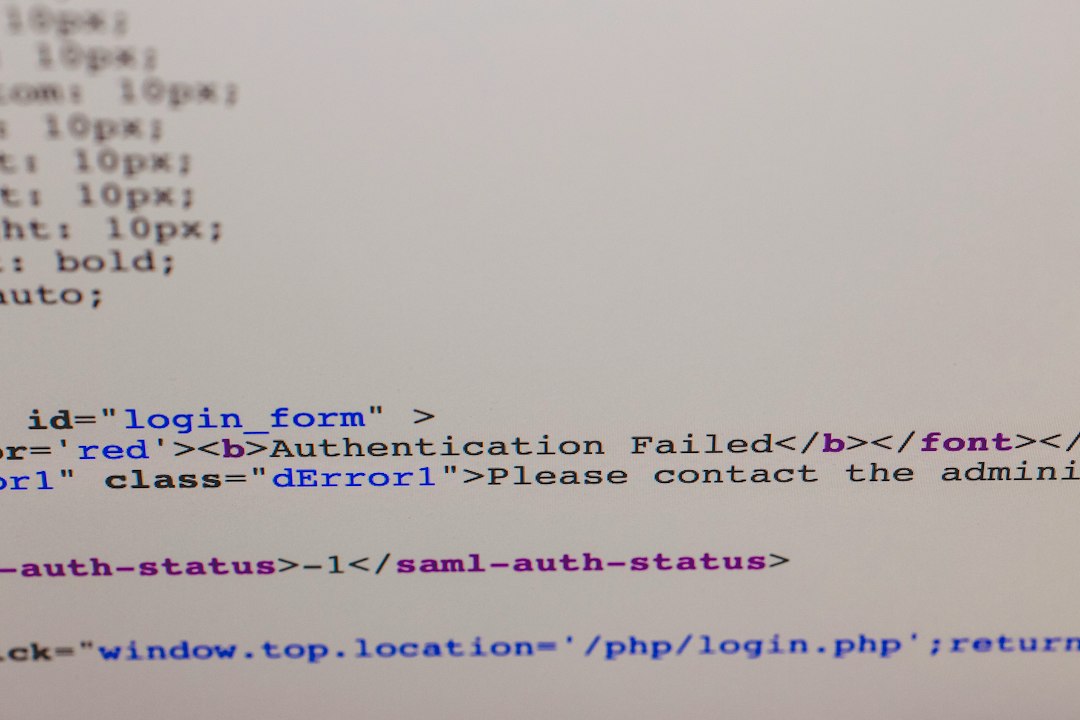
That single line tells you plenty. It names the error type, the missing function, the plugin folder, the file, and the line number. That is far better than “the site is broken,” which is the least helpful error report ever invented.
Production safety rules
Debugging production sites needs restraint. A live site can include customer data, payment flows, private URLs, and sensitive paths. Treat debug output like confidential material.
- Do not display errors publicly. Use
WP_DEBUG_DISPLAYset tofalse. - Delete old debug logs. They can become huge and expose file paths.
- Use staging when possible. Copy the site, test there, then apply the fix.
- Check file permissions. Logs should not be easy to download from a browser.
- Disable debugging after the fix. Leaving it on adds noise and risk.
If your host offers a log viewer, use it. cPanel, Plesk, managed WordPress dashboards, and cloud hosts often show PHP errors without editing files. That saves time. It also avoids the classic mistake of breaking wp-config.php with one missing semicolon.

Extra debugging settings worth knowing
WP_DEBUG is the main switch, but WordPress has related tools.
- WP_DEBUG_LOG: saves debug messages to a file.
- WP_DEBUG_DISPLAY: controls whether errors appear on screen.
- SCRIPT_DEBUG: loads non-minified WordPress CSS and JavaScript files.
- SAVEQUERIES: stores database queries for inspection, but can slow the site.
Use SAVEQUERIES with care. It can help diagnose slow database calls, but it adds overhead. Expect to waste time on false leads if caching, object cache, and hosting limits are not checked too.
Which should you use first?
If the site is down, start with error logs. If a plugin or theme behaves oddly, use WP_DEBUG_LOG. If the bug appears only after a user action, combine both and match timestamps.
The best answer is not WP_DEBUG or logs. It is WP_DEBUG plus logs, used in the right order. Logs tell you where the fire started. WP_DEBUG helps you inspect the wiring. Together, they turn WordPress troubleshooting from blind clicking into a repeatable process.