Choose Canva when the GIF must look polished, branded, and ready for social media; choose EZGIF when you need fast technical edits, compression, trimming, or frame-level fixes. Canva is the stronger creative tool because it offers templates, text animation, brand assets, and export options in one visual workspace, and Canva promotes its GIF maker for turning designs into animated GIFs online [source: Canva]. EZGIF is less polished, but it is often quicker for repairing, resizing, converting, and shrinking GIF files without building a design from scratch.
TLDR: Canva is best for marketers, creators, and small teams making branded GIFs for posts, ads, email banners, and presentations. EZGIF is best for users who already have a GIF or video clip and need to cut, resize, optimize, or convert it fast. For example, a social media manager making a 10-second sale animation may finish the design in Canva in about 15 minutes, then use EZGIF to reduce a 9.8 MB export to around 3.1 MB for easier uploading. If you only pick one, pick Canva for creation and EZGIF for cleanup.
Canva vs. EZGIF at a Glance
Canva and EZGIF both create animated content in a web browser, but they solve different problems. Canva behaves like a full design studio. EZGIF behaves like a compact toolbox. That difference matters more than people expect.
If your goal is to make a clean product promo, announcement, quote graphic, or animated logo reveal, Canva gives you a faster path. You start with a blank canvas or a template, add text, apply motion, drop in icons, and export. It feels familiar because it uses a drag-and-drop editor.
EZGIF is more direct. You upload a file, pick a function, change settings, and process it. There is no campaign layout, no brand kit, no elegant editor, and no deep template library. The upside is control. You can split a GIF into frames, remove frames, optimize color, resize dimensions, crop edges, reverse playback, or convert video to GIF from a simple web page.
Best for Design: Canva
Canva wins for design quality. Its best feature is not just animation. It is structure. You can build a visual asset that looks intentional. That includes font pairing, image placement, spacing, brand colors, stickers, icons, and animated transitions.
This matters for business content. A GIF used in a newsletter header or Instagram Story cannot look like a rough file someone patched together during lunch. Canva helps non-designers avoid obvious mistakes. Templates are useful here, especially for event reminders, flash sales, educational tips, and product launches.
- Templates: Strong for social posts, stories, ads, and simple explainers.
- Brand tools: Useful for teams that need the same fonts, colors, and logos.
- Text animation: Easy to apply without timeline editing skills.
- Collaboration: Better for teams reviewing content before publishing.
The catch is that Canva can feel too controlled when you want exact frame-by-frame editing. You can adjust timing and animation style, but you do not get the same technical access that EZGIF gives. Also, some templates, photos, and premium elements sit behind paid plans. That can be annoying when a design looks finished, then one small asset needs payment.
Best for Technical Editing: EZGIF
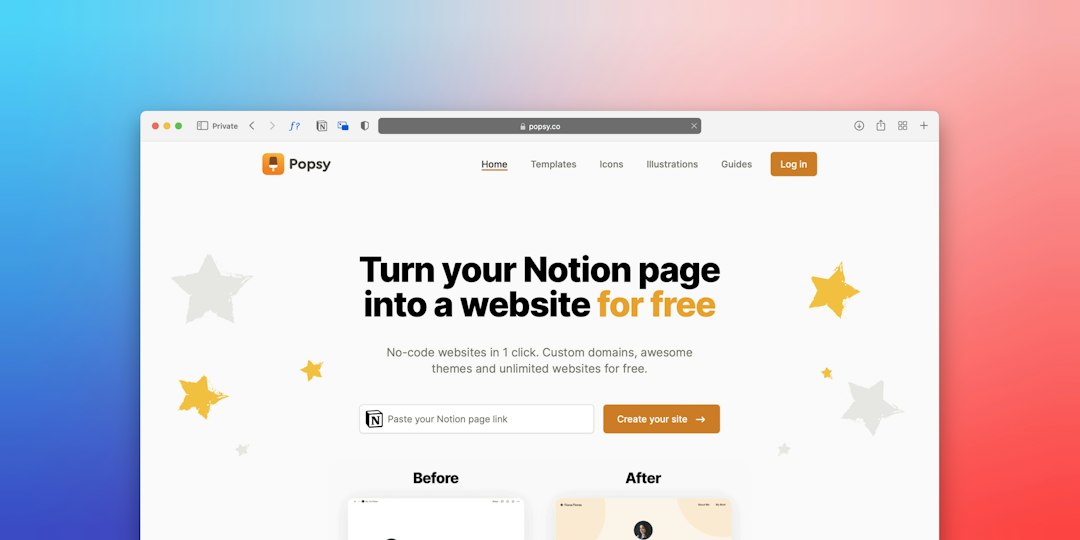
EZGIF wins for practical GIF handling. It is not trying to be beautiful. It is trying to be useful. The site includes tools for GIF creation, resizing, cropping, optimization, splitting, effects, and video conversion [source: EZGIF].
This is where EZGIF earns trust. If a GIF is too large for an email platform, EZGIF can reduce file size. If the animation has dead space, you can crop it. If it plays too slowly, you can adjust speed. If the end has two useless frames, you can remove them.
Honestly, it feels like EZGIF was built by people who care more about solving the file problem than making the page look modern. That is both good and bad. The interface is plain. Some actions take extra clicks. Previewing, saving, and re-uploading can feel clumsy. It drives me crazy that a simple edit can sometimes mean moving through several separate tool pages instead of staying in one clean workspace.
Still, for pure utility, EZGIF is hard to dismiss. Canva may create the better-looking GIF, but EZGIF often makes the final file more usable.
Ease of Use
Canva is easier for beginners who think visually. You can see the design as you build it. Dragging text, replacing images, changing colors, and previewing movement are simple tasks. Most users can create something presentable without reading instructions.
EZGIF is easy in another way. Each tool is simple, but the workflow can feel fragmented. Upload here. Process there. Save the result. Open another tool. Upload again. Repeat. For a one-step compression job, that is fine. For a full creative project, it gets old quickly.
If speed means finishing a polished design, Canva is faster. If speed means fixing one technical issue, EZGIF is faster.
Output Quality and File Size
GIFs are heavy by nature. Animated files can become too large fast, especially when they include photos, gradients, shadows, or long motion sequences. This is where expectations need to be realistic.
Canva exports clean-looking animated content, but the file size may be higher than you want. That is common with visual design tools. The result may look good but still need compression before upload to an email service, blog, or ad platform.
EZGIF gives more control over file weight. You can reduce colors, remove duplicate frames, resize dimensions, cut duration, and test different compression settings. That makes it better for performance-focused work. A smaller file can load faster and cause fewer upload errors.
When to Use Canva
- Use Canva when you need a branded GIF for Instagram, LinkedIn, Pinterest, email, or a presentation.
- Use it when design quality matters more than frame-level precision.
- Use it when a team needs to review, edit, and reuse layouts.
- Use it when you want animated text, icons, and product visuals without learning video software.
When to Use EZGIF
- Use EZGIF when you already have a GIF and need to resize, crop, or compress it.
- Use it to convert short video clips into GIFs.
- Use it to split a GIF into frames and remove mistakes.
- Use it when you need a free, direct browser tool with no design extras in the way.
Simple Buying and Workflow Advice
The best workflow is often not Canva or EZGIF. It is Canva then EZGIF. Build the visual asset in Canva. Keep it short, ideally under 6 to 10 seconds for social or email use. Export the animation. Then run it through EZGIF if the file is too large or the timing needs small corrections.
For solo creators, Canva gives the better all-around value because it helps produce finished content, not just process files. For marketers, Canva is the safer primary tool because brand consistency matters. For developers, bloggers, and power users, EZGIF is the better utility because it provides precise web-based fixes with minimal ceremony.
Final Verdict
Canva is the better web GIF creator for most people because it produces stronger visual content with less effort. It is the right choice for branded posts, product promos, announcements, and creator content. It saves time because the design, layout, and animation tools are in one place.
EZGIF is the better technical companion. It is not glamorous, but it is useful when a GIF needs to be smaller, cleaner, shorter, or converted from another format. Serious teams should keep both bookmarked. Use Canva to make the GIF worth watching. Use EZGIF to make it easier to upload, share, and load.