
A successful WordPress migration is more than copying files from one server to another. It is a structured process that protects performance, search visibility, security, user experience, and business continuity. When a website is moved to a new hosting environment, the migration team should treat the project as a planned technical transition rather than a quick transfer.
TLDR: A reliable WordPress migration begins with a full audit, complete backups, and a careful review of the new hosting environment. The migration team should move files and databases securely, test the site on a temporary URL or staging environment, and update DNS only after everything works correctly. Post-migration checks are essential to confirm speed, security, SEO settings, forms, redirects, and uptime.
Why WordPress Migration Requires Careful Planning
WordPress websites often rely on several connected components: themes, plugins, media files, custom code, databases, caching systems, email services, DNS records, and security configurations. If one piece is missed, the site may experience broken pages, missing images, failed logins, lost form submissions, or search ranking issues.
The migration team should begin by defining the reason for the move. A website may be migrating to improve speed, gain better technical support, increase storage, strengthen security, reduce costs, or move from shared hosting to a VPS, cloud, or managed WordPress platform. Understanding the goal helps determine the correct migration strategy and testing process.
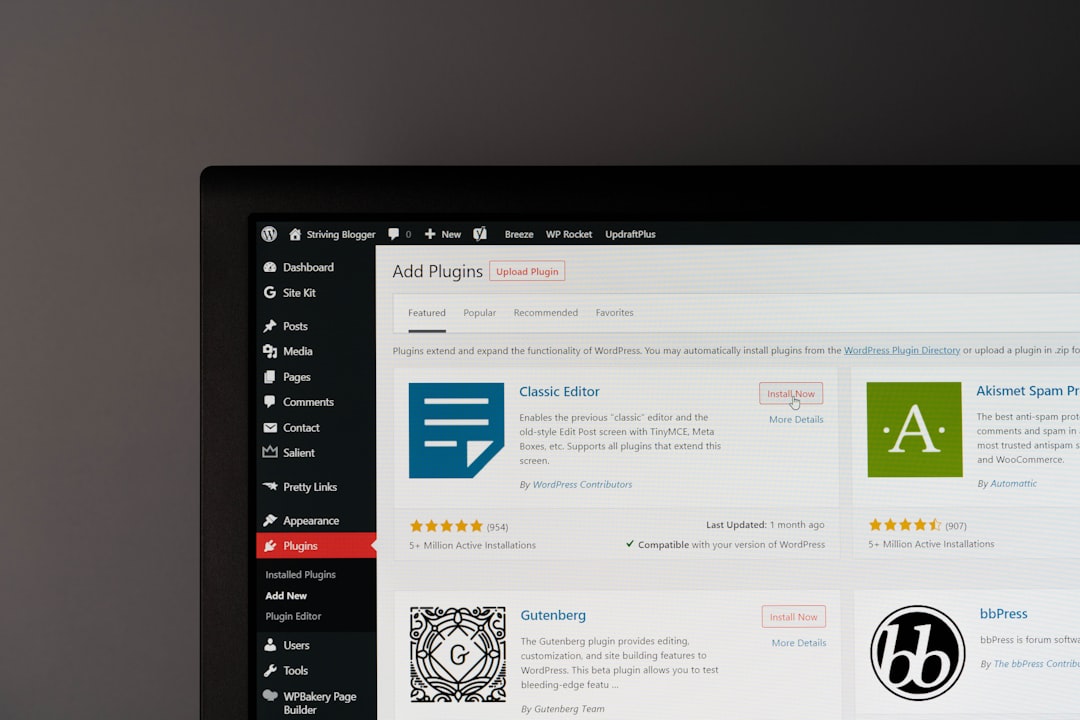
1. Audit the Existing WordPress Site
Before anything is transferred, the current site should be reviewed in detail. This audit creates a clear picture of what must be moved and what can be improved during the transition.
- WordPress version: The team should confirm whether the core installation is up to date.
- Theme status: The active theme and any child themes should be documented.
- Plugin inventory: All active and inactive plugins should be reviewed for compatibility and necessity.
- Database size: Large databases may require special handling during export and import.
- Media library: The team should check the size and structure of uploads.
- Custom code: Any code in theme files, mu plugins, or custom snippets should be identified.
- SEO settings: Metadata, redirects, sitemaps, and schema should be recorded.
- Forms and integrations: Contact forms, payment gateways, CRM tools, analytics, and email services should be tested before and after migration.
This audit also offers an opportunity to remove unused plugins, delete old themes, clean spam comments, and optimize database tables. A leaner site is easier to move and often performs better on the new server.
2. Choose the Right Hosting Environment
The new host should match the technical and business needs of the website. A small brochure site may run well on quality shared hosting, while an ecommerce store, membership platform, or high traffic publication may require managed WordPress hosting, cloud infrastructure, or a dedicated server.
The migration team should compare several hosting factors, including:
- PHP and MySQL support: The server should support modern and stable versions compatible with WordPress.
- SSL availability: Free or managed SSL certificates should be available.
- Server location: Hosting close to the primary audience can reduce latency.
- Backup system: The host should provide automated backups and easy restoration options.
- Staging tools: A staging environment makes testing safer and easier.
- Scalability: The plan should allow upgrades as traffic grows.
- Security features: Malware scanning, firewalls, and login protection are valuable.
- Support quality: Responsive technical support is critical during migration and troubleshooting.
The best hosting environment is not always the cheapest one; it is the one that can reliably support the site’s traffic, functionality, and future growth.
3. Create Complete Backups Before Migration
No WordPress migration should begin without a complete backup. The backup should include both the website files and the database. Files contain themes, plugins, uploads, and core WordPress assets. The database contains posts, pages, settings, users, comments, orders, and plugin data.
Backups should be stored in multiple locations, such as local storage and secure cloud storage. The migration team should also verify that the backup can be restored. A backup that has never been tested may create a false sense of security.
Common backup methods include hosting control panel tools, WordPress backup plugins, command line exports, and manual FTP or SFTP downloads combined with database exports from phpMyAdmin or similar tools. For large or complex sites, command line tools such as WP CLI may be more reliable than browser based exports.
4. Prepare the New Hosting Account
Before transferring the site, the new hosting environment should be configured properly. This includes creating the hosting account, setting the correct PHP version, enabling required PHP extensions, creating a new database, and setting secure database credentials.
The team should also check file permissions, server memory limits, maximum upload size, and execution time. Some WordPress sites fail on a new server because the environment is too restrictive for large plugins, page builders, import processes, or ecommerce functions.
If the host provides a temporary URL or staging domain, it should be used for testing before DNS changes are made. This allows the migrated site to be checked privately while the public site remains live on the old server.

5. Migrate Files and Database Securely
The migration itself usually involves moving the WordPress files and importing the database into the new environment. Files should be transferred using secure methods such as SFTP or SSH rather than unsecured FTP. The database should be exported from the old server and imported into the new database.
After the database is imported, the wp-config.php file must be updated with the new database name, username, password, and host. If the domain name is changing, URLs in the database must also be updated carefully. A proper search and replace tool should be used to preserve serialized data, which is common in WordPress plugin and theme settings.
For websites with ecommerce orders, memberships, forums, or active user submissions, timing is especially important. The migration team may need to place the site in maintenance mode or perform a final database sync immediately before launch to avoid losing new orders or user activity.
6. Test the Site Before Updating DNS
Testing is one of the most important best practices in WordPress migration. The site should be reviewed thoroughly on the new server before the domain is pointed to it. This can be done through a staging URL, temporary domain, or local hosts file adjustment.
The testing checklist should include:
- Homepage, key landing pages, blog posts, and service pages
- Navigation menus and footer links
- Images, videos, downloadable files, and embedded media
- Contact forms, newsletter forms, and lead generation forms
- Login, registration, account, and checkout pages
- Payment gateways and ecommerce tax or shipping settings
- Search functionality and filters
- Mobile layout and responsive design
- Plugin generated features such as sliders, popups, galleries, and booking tools
- Admin dashboard access and user permissions
Any errors should be fixed before launch. Common issues include broken permalinks, missing media files, mixed content warnings, plugin conflicts, incorrect database credentials, and PHP version incompatibilities.
7. Manage DNS Changes Carefully
Once the migrated site has passed testing, the domain’s DNS records can be updated to point to the new hosting server. The migration team should lower the TTL value in advance if possible. A lower TTL can help DNS changes propagate faster, reducing the period during which visitors may reach either the old or new server.
DNS propagation may take several hours, and in some cases up to 48 hours. During this period, both the old and new hosting environments may receive traffic. For dynamic websites, it is important to prevent data loss by limiting changes on the old site or performing a final synchronization.
After DNS updates, the team should confirm that the domain resolves to the new IP address, the SSL certificate is active, and both HTTP and HTTPS versions redirect properly. If the site uses a content delivery network, those settings should also be updated and tested.
8. Preserve SEO During Migration
Search visibility can be affected by poor migration practices. If the site is moving to a new host but keeping the same domain and URL structure, SEO risk is usually lower. However, problems can still occur if pages return errors, speed decreases, metadata disappears, or the SSL setup fails.
Important SEO checks include:
- Permalinks: URL structure should remain unchanged unless a planned redesign requires changes.
- Redirects: Existing redirects should be migrated and tested.
- Meta titles and descriptions: SEO plugin settings should remain intact.
- XML sitemap: The sitemap should load correctly and reflect the current site structure.
- Robots.txt: Search engines should not be blocked after launch.
- Canonical tags: Canonicals should point to the correct live URLs.
- Analytics and tracking: Tracking codes should still fire correctly.
If the domain or URL structure changes, a detailed redirect map is essential. Every important old URL should redirect to the most relevant new URL using a proper 301 redirect.
9. Optimize Performance on the New Server
A migration is an ideal time to improve speed. After the site is live on the new host, the team should review caching, image optimization, database performance, and server response time.
Performance improvements may include enabling page caching, object caching, browser caching, GZIP or Brotli compression, a CDN, lazy loading, and updated image formats. The team should also check whether old cache files or plugin settings from the previous host conflict with the new environment.

Speed testing should be performed from multiple locations and devices. A site that loads quickly for administrators may still be slow for users in another region or on mobile networks.
10. Strengthen Security After Launch
Security settings should be reviewed immediately after migration. The new host may offer different server level protections, but WordPress still needs careful configuration.
- Install and verify the SSL certificate.
- Update WordPress core, themes, and plugins.
- Remove unused themes and plugins.
- Use strong administrator passwords.
- Enable two factor authentication where possible.
- Check file permissions.
- Disable unnecessary file editing from the dashboard.
- Configure firewall and malware scanning tools.
- Confirm automated backups are running on the new host.
The team should also monitor error logs and security logs during the first several days after launch. Early detection helps resolve small issues before they become serious problems.
11. Conduct Post-Migration Quality Assurance
After the DNS change and launch, a final round of quality assurance should be completed. This confirms that real visitors, search engines, and third party tools are interacting with the new hosting environment correctly.
The post-migration checklist should cover uptime monitoring, form submissions, transactional emails, checkout flow, analytics data, search console reports, crawl errors, and page speed metrics. If the site sends email through the server, email deliverability should also be tested because hosting changes can affect SPF, DKIM, DMARC, and SMTP configurations.
The old hosting account should not be cancelled immediately. It is often wise to keep it active for at least a few days, and sometimes longer for complex sites. This provides a fallback option in case unexpected issues appear.
Common Mistakes to Avoid
- Migrating without a backup: This creates unnecessary risk and can lead to permanent data loss.
- Skipping staging tests: Public launch should not be the first real test of the new server.
- Ignoring DNS timing: Poor timing can cause downtime or lost transactions.
- Forgetting SSL: Missing or misconfigured SSL can create browser warnings and SEO problems.
- Overlooking email: Website migration can affect email routing if DNS records are changed incorrectly.
- Deleting the old site too soon: The old host should remain available until the new setup is proven stable.
Conclusion
A WordPress site migration to a new hosting environment should follow a disciplined process: audit, backup, prepare, transfer, test, launch, and monitor. Each stage reduces the chance of downtime, data loss, broken functionality, and SEO disruption. When the migration team plans carefully and validates every critical feature, the move can become an opportunity to improve speed, security, and long term reliability.
FAQ
How long does a WordPress site migration take?
A simple WordPress migration may take a few hours, while a large ecommerce or membership site may require several days of planning, testing, and launch coordination.
Will migration affect SEO rankings?
Migration does not have to hurt SEO if URLs, redirects, metadata, SSL, speed, and crawl access are handled correctly. Poor testing or broken pages can negatively affect rankings.
Should the old hosting account be cancelled immediately?
No. The old hosting account should remain active until the new site has been tested in production and DNS propagation is complete.
Is a migration plugin enough?
A migration plugin can help with many transfers, but complex sites may still require manual checks, database handling, server configuration, and post-launch testing.
What is the most important step in WordPress migration?
The most important step is creating a complete, verified backup before any changes are made. Testing the migrated site before DNS updates is equally critical.
Can a WordPress site be migrated without downtime?
Yes, many migrations can be completed with little or no visible downtime when staging, DNS planning, final synchronization, and careful launch timing are used.