When an iPhone flashlight stops working, the cause is usually less dramatic than it first appears. The LED flash may be blocked by a setting, used by another app, temporarily disabled by overheating, or affected by a software glitch. In some cases, however, the problem can point to camera or hardware damage.
TLDR: An iPhone flashlight often stops working because the Camera app is open, Low Power Mode or overheating is limiting features, iOS has a temporary bug, or the flash hardware is damaged. For example, if a user opens the Camera app and leaves it in video mode, the flashlight toggle may appear unavailable until the app is closed. In a typical troubleshooting checklist of 10 common causes, about 7 are related to software, settings, or app conflicts rather than broken hardware. A restart, iOS update, or closing camera-related apps often fixes the issue within a few minutes.
Common Reasons the iPhone Flashlight Is Not Working
The flashlight on an iPhone uses the same LED module as the rear camera flash. That means anything affecting the camera, flash, temperature, or system controls can also affect the flashlight. Before assuming the device needs repair, the user should check several common causes.
1. The Camera App Is Using the Flash
One of the most common reasons the flashlight does not turn on is that the Camera app is already using or controlling the LED flash. If the camera is open, especially in Video, Portrait, or Slow Motion mode, iOS may prevent the flashlight from being activated through Control Center.
The user should close the Camera app completely and then try the flashlight again. On newer iPhones, this can be done by swiping up from the bottom of the screen and pausing, then swiping the Camera app away. On older models with a Home button, double-clicking the Home button opens the app switcher.
2. The iPhone Is Too Hot
If the iPhone becomes too warm, iOS may temporarily disable features that generate additional heat. The flashlight is one of those features because the LED can become warm during use. This can happen after long video recording sessions, gaming, GPS navigation, charging in direct sunlight, or using the phone in a hot car.
When temperature is the issue, the flashlight may appear greyed out, fail to turn on, or shut off quickly. The best solution is to let the iPhone cool down naturally. The user should remove the case, stop heavy apps, avoid charging for a short period, and place the device in a cooler indoor area. It should not be put in a refrigerator or freezer, as sudden temperature changes can cause moisture problems.
3. Low Battery or Power Management
Low battery does not always disable the flashlight directly, but it can contribute to performance restrictions. If the battery is critically low, iOS may prioritize essential functions. Low Power Mode can also reduce background activity and system performance, although the flashlight usually remains available.
If the flashlight is unreliable, the user should charge the iPhone to at least 20% to 30% and test again. If the battery health is poor, the phone may also struggle to power features consistently. Battery Health can be checked by going to Settings > Battery > Battery Health & Charging.
4. A Temporary iOS Glitch
Like any smartphone feature, the flashlight can stop responding because of a temporary software glitch. The icon may be available in Control Center, but tapping it does nothing. The Lock Screen flashlight shortcut may also fail to respond.
A simple restart often clears this issue. The user can turn the iPhone off, wait about 30 seconds, and turn it back on. On iPhones with Face ID, the side button and either volume button can be held together to access the power slider. On iPhones with a Home button, the side or top button is used.
- Restart the iPhone to clear temporary memory issues.
- Close background apps that may be using the camera.
- Test the flashlight from both Control Center and the Lock Screen.
5. The Flashlight Button Is Missing or Greyed Out
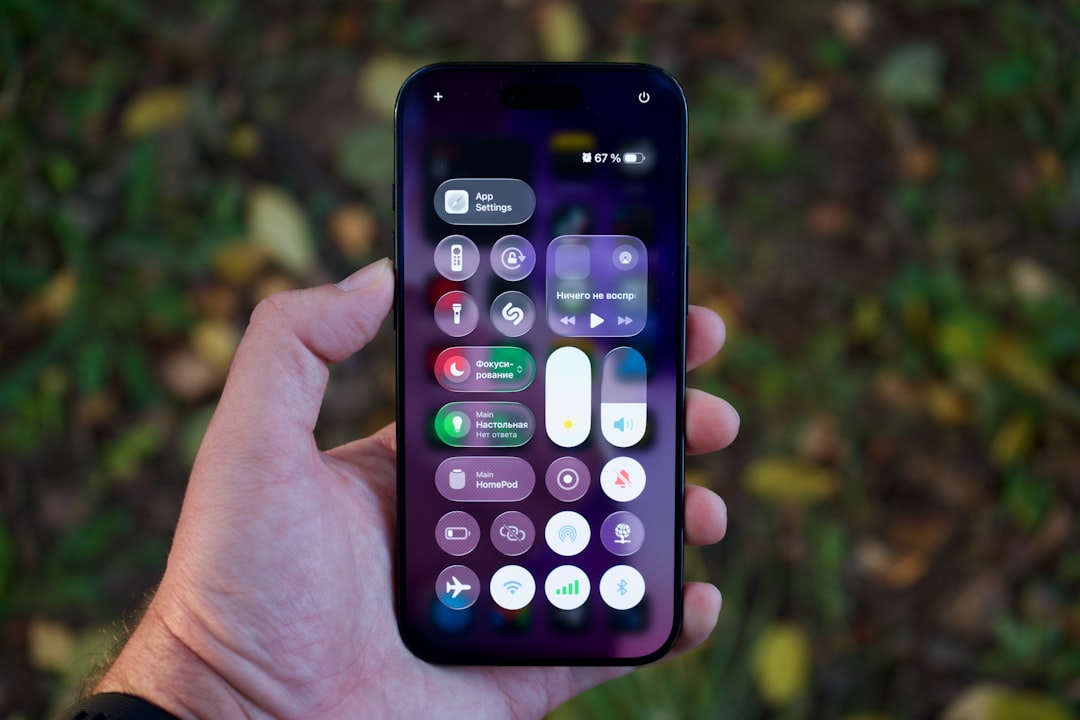
If the flashlight icon is missing from Control Center, it may simply need to be added again. The user can go to Settings > Control Center and make sure Flashlight is included. If the icon is greyed out, another app may be using the flash, the device may be too hot, or iOS may be restricting the feature temporarily.
The Lock Screen flashlight shortcut can also seem unresponsive if the user taps it too quickly. On many iPhone models, the shortcut requires a firm press or long press rather than a quick tap.
6. An App Is Conflicting With the Flash
Some third-party apps use the camera or LED flash, including scanner apps, social media apps, video recording tools, magnifiers, and flashlight apps. If one of these apps freezes or continues running in the background, it may interfere with normal flashlight behavior.
The user should close any app that recently used the camera or flash. If the issue began after installing a specific app, deleting or updating that app may help. It is generally better to use the built-in iPhone flashlight instead of third-party flashlight apps, since the native tool is safer, cleaner, and integrated with iOS.
7. iOS Needs an Update
Software updates often fix bugs related to system controls, camera performance, and hardware communication. If the iPhone flashlight stopped working after an update, a follow-up patch may resolve it. If the phone has not been updated for a long time, an older iOS version could also be causing instability.
To check for updates, the user can open Settings > General > Software Update. Before updating, the iPhone should have enough battery and preferably be connected to Wi-Fi. Backing up important data is also recommended.
How to Fix an iPhone Flashlight That Will Not Work
The best approach is to work from the simplest solutions to the more advanced ones. Most users do not need to reset the phone or visit a repair shop immediately.
- Close the Camera app and any app using the camera or flash.
- Restart the iPhone and test the flashlight again.
- Let the device cool down if it feels warm or was used heavily.
- Charge the battery and check Battery Health if shutdowns or lag are common.
- Update iOS to the latest available version.
- Check Control Center settings to confirm the flashlight shortcut is enabled.
- Test the camera flash by taking a photo with flash turned on.
If the camera flash works but the flashlight does not, the issue is more likely related to software or settings. If neither the camera flash nor the flashlight works, the LED module or camera system may have a hardware problem.
When It Might Be a Hardware Problem
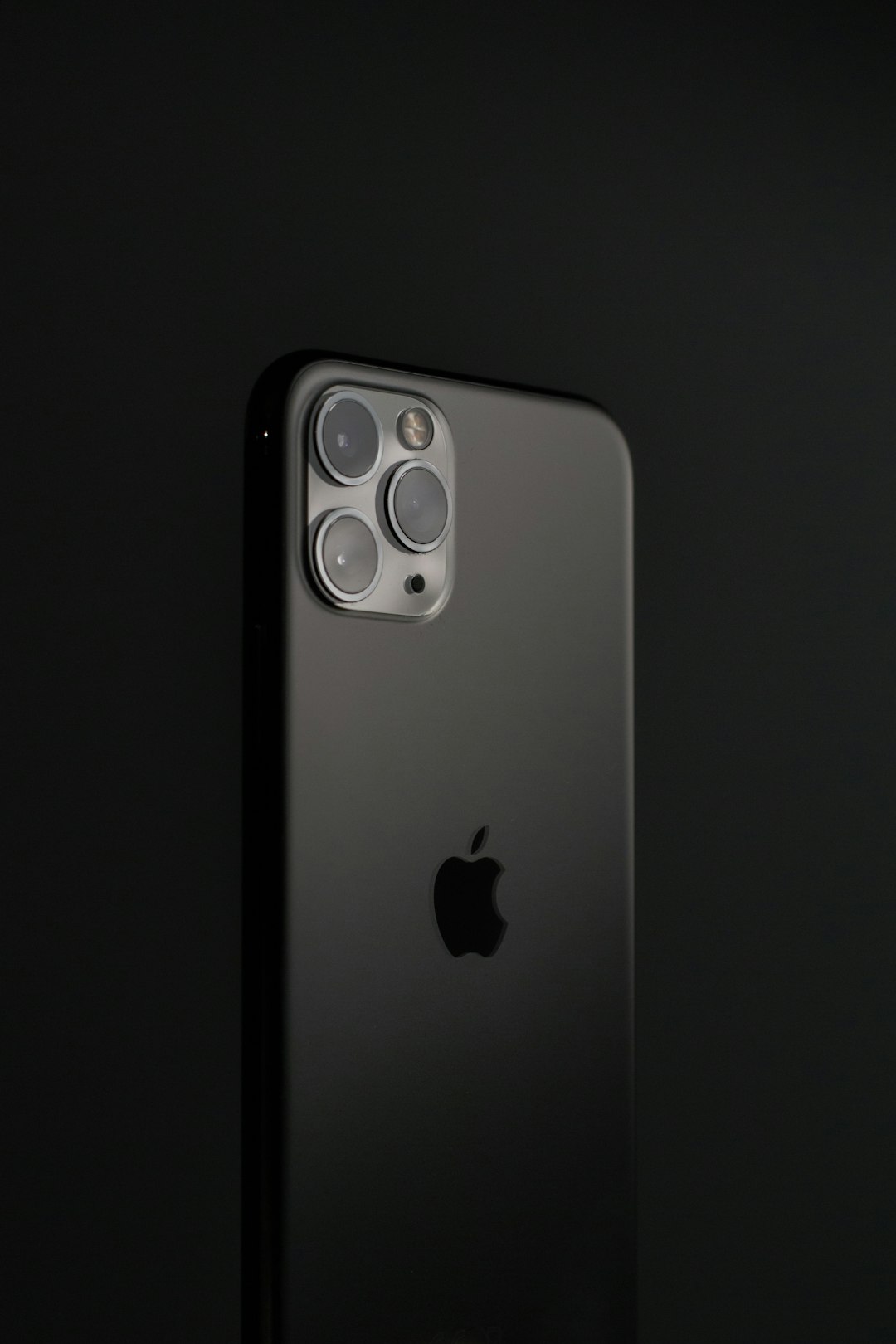
Hardware damage is less common, but it is possible. The flashlight may fail after the iPhone is dropped, exposed to water, repaired with low-quality parts, or affected by internal component failure. A damaged rear camera module can also affect the LED flash.
Warning signs of hardware trouble include a flashlight that never turns on, a camera flash that also fails, visible damage near the rear camera, moisture exposure, or camera errors inside the Camera app. In this situation, the user should contact Apple Support or a trusted repair provider for diagnosis.
What Not to Do
Some fixes can create more problems than they solve. The user should avoid extreme methods unless they are recommended by Apple or a qualified technician.
- Do not put the iPhone in a freezer to cool it down.
- Do not install random flashlight apps to “force” the LED on.
- Do not reset all settings before trying simpler steps.
- Do not ignore signs of water or impact damage.
FAQ
Why is the flashlight icon greyed out on an iPhone?
The flashlight icon is usually greyed out because the Camera app or another app is using the flash, the iPhone is too hot, or iOS is temporarily restricting the feature.
Can Low Power Mode stop the flashlight from working?
Low Power Mode does not normally disable the flashlight by itself, but a very low battery or poor battery health may cause features to behave unpredictably.
Why does the flashlight work sometimes but not always?
Intermittent flashlight problems are often caused by app conflicts, overheating, temporary iOS glitches, or battery performance issues. Restarting the phone and closing camera-related apps usually helps.
How can someone test whether the flash hardware is broken?
The user can open the Camera app, turn flash on, and take a photo. If the camera flash and flashlight both fail, hardware damage is more likely.
Should the iPhone be repaired if the flashlight does not work?
Repair is only necessary if software fixes fail and the camera flash also does not work. In that case, the LED flash or camera module may need professional inspection.