Your phone says 5G, but the internet acts like a sleepy turtle. Or maybe the bars are gone, apps will not load, and your map has decided you live in the middle of nowhere. Do not panic. Cellular data problems are common, and most fixes are easy.
TLDR: If your cellular data is not working, start with the simple stuff. Turn Airplane Mode on and off, restart your phone, check your data plan, and make sure mobile data is enabled. For example, a user named Mia lost data after a flight, and a 10-second Airplane Mode reset fixed it. In many cases, basic toggles and restarts solve the issue in under 5 minutes.
First, What Is Cellular Data?
Cellular data is the internet your phone gets from your mobile carrier. It works through cell towers. It lets you browse, stream, message, and use apps when Wi-Fi is not around.
When cellular data stops working, your phone may still make calls. Or it may show bars but load nothing. That is annoying. It is like having a pizza box with no pizza inside.
1. Check If Mobile Data Is Turned On
This sounds obvious. But it happens all the time.
On iPhone:
- Open Settings.
- Tap Cellular.
- Make sure Cellular Data is on.
On Android:
- Open Settings.
- Tap Network & Internet or Connections.
- Tap Mobile Network.
- Turn on Mobile Data.
If it was off, turn it on. Then try loading a website. Pick something simple. Do not test with a huge video first. Your phone needs a warm-up lap.
2. Toggle Airplane Mode
Airplane Mode is the classic “shake the phone’s brain awake” button.
Turn Airplane Mode on. Wait about 10 seconds. Then turn it off. Your phone will reconnect to the network. This can clear small signal bugs.
Think of it like saying, “Hello tower, let’s try that again.”
3. Restart Your Phone
Yes, the old restart trick. It still works.
Phones run many background services. Sometimes one of them gets stuck. A restart clears temporary glitches. It also helps your phone reconnect to your carrier.
Power it off. Wait a few seconds. Turn it back on. Then test your data again.
4. Check Your Signal Bars
If you have one tiny bar, your data may crawl. If you have no bars, your phone cannot talk to the tower. It is not ignoring you. It just has no ears nearby.
Try these quick moves:
- Step outside.
- Move near a window.
- Leave the basement.
- Walk away from thick walls.
- Try a different room.
Buildings, elevators, tunnels, mountains, and crowded events can weaken signal. Even weather can make things worse. Your phone is strong, but it is not magic.
5. Check Your Data Plan
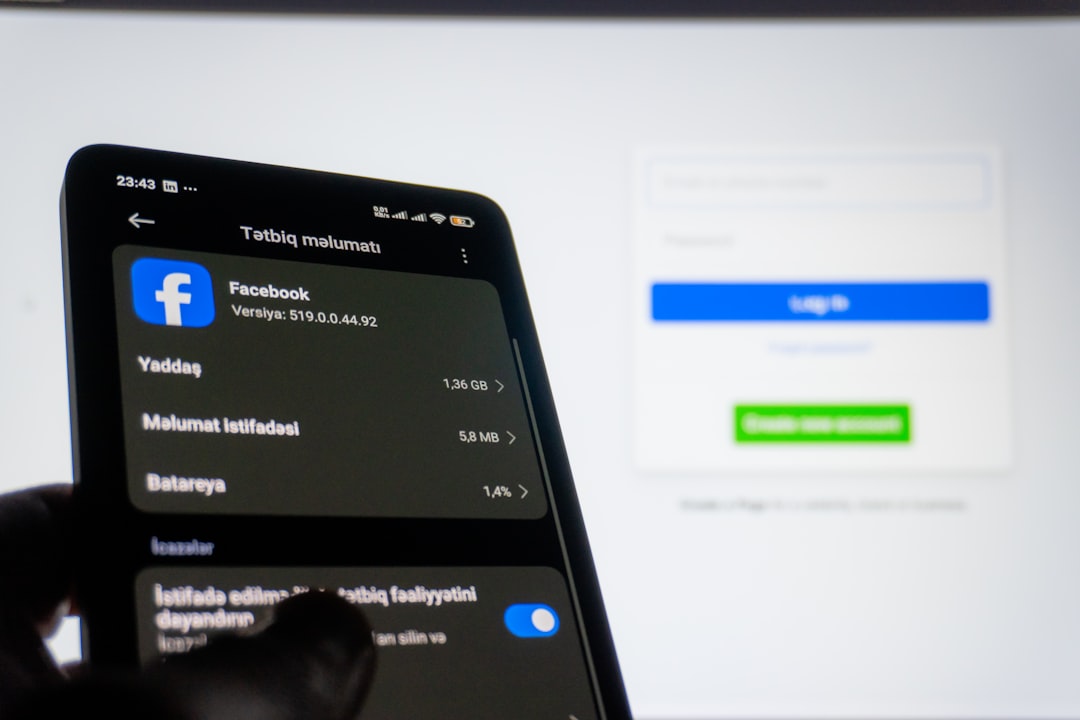
Your data may not be broken. It may be used up.
Open your carrier app or account page. Look for:
- Data limit reached.
- Unpaid bill.
- Plan expired.
- Roaming blocked.
- Speed reduced after heavy use.
Some plans slow you down after a limit. For example, a plan may include 20 GB of high-speed data. After that, it may drop to very slow speeds. Apps may look broken, but they are just moving like snails in slippers.
6. Turn Off Wi-Fi
This sounds strange, but it helps test the problem.
Sometimes your phone is connected to bad Wi-Fi. It may cling to it like a scared koala. Turn off Wi-Fi and try cellular data only.
If data works after you turn Wi-Fi off, the problem was the Wi-Fi network. Not your cellular signal.
7. Make Sure Roaming Is Set Correctly
If you are traveling, roaming matters.
When you leave your carrier’s main coverage area, your phone may need to use another network. This is called roaming. Some plans include it. Some do not.
On iPhone, go to Settings > Cellular > Cellular Data Options. Look for Data Roaming.
On Android, go to Settings > Network & Internet or Connections. Look for Roaming.
Be careful. Roaming can cost extra, especially in another country. Nobody wants a phone bill that looks like a dragon’s treasure hoard.
8. Check for Carrier Outages
Sometimes the problem is not your phone. It is the network.
Search online for your carrier name plus “outage.” You can also check your carrier’s social media or support page. If many people are reporting trouble, you found the culprit.
In that case, all you can do is wait. Maybe use Wi-Fi. Maybe take a deep breath. Maybe remember birds exist.
9. Update Your Phone
Software updates can fix network bugs. They can also update carrier settings.
On iPhone:
- Go to Settings.
- Tap General.
- Tap Software Update.
On Android:
- Go to Settings.
- Tap System.
- Tap Software Update.
If an update is ready, install it when you have enough battery. Keep your phone charged. Updates hate drama.
10. Reset Network Settings
This is a bigger step, but it often works.
Resetting network settings clears saved Wi-Fi networks, Bluetooth pairings, mobile settings, and VPN settings. It does not erase your photos or apps.
On iPhone:
- Open Settings.
- Tap General.
- Tap Transfer or Reset iPhone.
- Tap Reset.
- Choose Reset Network Settings.
On Android, the path can vary. Look for Reset Wi-Fi, Mobile & Bluetooth under system reset options.
11. Check Your SIM or eSIM
Your SIM connects your phone to your carrier. If it is loose, damaged, or not active, data may fail.
If you use a physical SIM, turn off your phone. Remove the SIM card. Check it for dust or damage. Put it back in carefully.
If you use an eSIM, check your carrier settings. Make sure the eSIM line is active. If it looks wrong, contact your carrier before deleting it. Deleting an eSIM without a backup plan can create a new headache.
12. Look at App Settings
Maybe cellular data works, but one app does not. That app may be blocked from using data.
On iPhone, go to Settings > Cellular. Scroll down and check app access.
On Android, go to the app info page. Look for Mobile Data or Data Usage.
Also check if Data Saver or Low Data Mode is on. These modes can limit background activity. They are useful, but sometimes too strict.
Quick Fix Checklist
Try this order. It is fast and painless.
- Turn mobile data on.
- Toggle Airplane Mode.
- Restart your phone.
- Move to a better signal area.
- Check your data plan.
- Turn off Wi-Fi to test cellular data.
- Check for carrier outages.
- Update your phone.
- Reset network settings.
- Check your SIM or eSIM.
When to Call Your Carrier
Call your carrier if nothing works. Ask them to check your line, plan, SIM, eSIM, and local towers. They can also refresh your connection from their side.
Tell them what you already tried. This saves time. It also makes you sound like a tech wizard with a checklist.
Final Thought
Cellular data issues feel stressful, but most are small. A setting may be off. A tower may be busy. Your plan may be out of data. Or your phone may just need a fresh start.
Start simple. Move step by step. In most cases, your signal will return before your coffee gets cold. And when it does, your apps can stop pretending they live in 2007.