The Surface Book 2 remains a distinctive Windows laptop because of its detachable display, rigid keyboard base, and productivity-focused design. One of its most practical features is the backlit keyboard, which helps maintain typing accuracy in dim offices, lecture halls, aircraft cabins, and late-night work sessions. Understanding how the lighting works, how the function keys behave, and which shortcuts are most useful can make the device faster and more comfortable to use every day.
TLDR: The Surface Book 2 keyboard includes adjustable backlighting that is controlled from the keyboard’s function row, typically by using the key marked with the keyboard backlight icon. The lighting cycles through several brightness levels, including off, and may require the keyboard base to be properly attached. The Fn key changes whether the top-row keys act as media controls or traditional F1–F12 keys. Learning key Windows, Surface, and productivity shortcuts can significantly improve navigation, multitasking, and accessibility.
Understanding the Surface Book 2 Keyboard Design
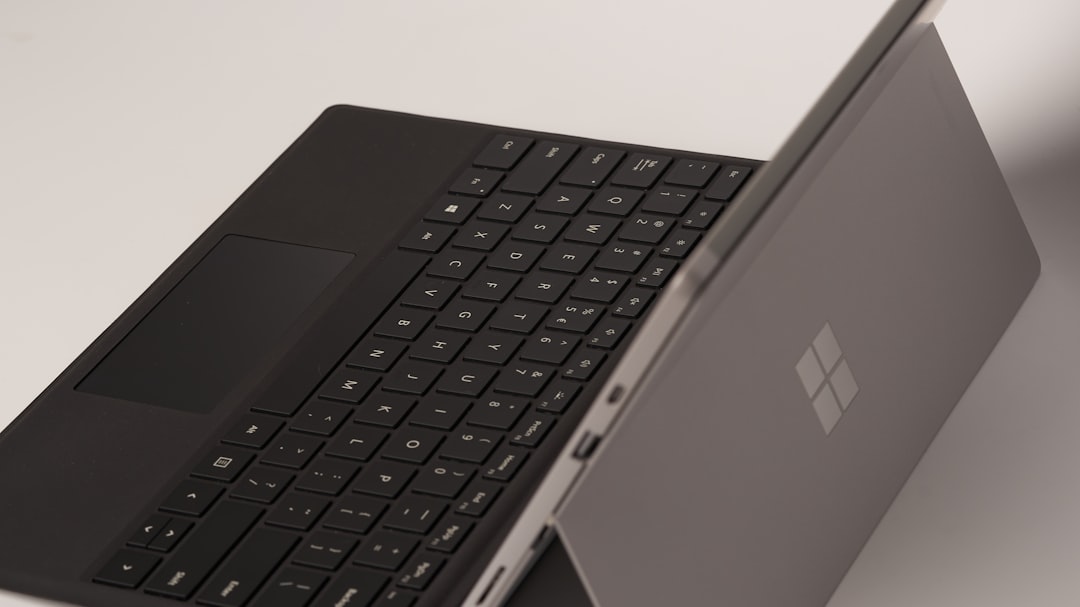
The Surface Book 2 was designed as a premium hybrid device, but its keyboard feels closer to a traditional laptop keyboard than a detachable tablet accessory. The keys have a stable feel, good spacing, and a familiar layout, which makes long typing sessions more manageable. The keyboard is built into the base section of the device, while the screen section contains the tablet hardware.
This distinction matters because the backlit keyboard only works when the display is attached to the keyboard base. If the screen is detached and used as a tablet, the physical keyboard and its lighting are unavailable. If the keyboard backlight does not respond, the first thing to confirm is that the display is seated correctly and the base connection is secure.

How the Backlit Keyboard Works
The Surface Book 2 keyboard backlight is designed to improve visibility without being distracting. It illuminates the characters on the keys rather than creating a broad glow across the entire keyboard deck. This makes it useful in dark environments while preserving a professional appearance.
On most Surface Book 2 keyboards, the backlight is controlled by the key in the function row that shows a keyboard illumination icon. Depending on the layout and region, this is commonly associated with the F7 position, but the icon on the key should be treated as the most reliable guide.
Pressing the backlight key usually cycles through brightness levels:
- Off – useful in bright rooms or when conserving battery.
- Low brightness – suitable for dim environments without glare.
- Medium brightness – helpful for general low-light typing.
- High brightness – best for very dark rooms or travel situations.
The exact feel of the lighting can vary slightly depending on keyboard condition, ambient light, and battery state. The Surface Book 2 does not provide a highly detailed lighting control panel for custom colors or individual key illumination. It is a practical white backlight system, not an RGB gaming-style keyboard.
Using the Fn Key Correctly
The Fn key is central to using the Surface Book 2 keyboard efficiently. Like many compact laptop keyboards, the top row serves two purposes. It can function as a row of system controls, such as volume, brightness, and media keys, or as standard function keys, such as F1, F2, and F3.
If pressing a top-row key performs the wrong action, the Fn mode may be the reason. For example, a key may adjust volume when you expected it to act as F2 in an application. Conversely, a shortcut in a program may not work if the keyboard is currently prioritizing device controls.
On Surface keyboards, Fn Lock can usually be toggled by pressing Fn + Caps. When Fn Lock is enabled, the top row behaves more like traditional function keys. When it is disabled, the top row prioritizes icons such as volume, brightness, media playback, and keyboard lighting.
Practical advice: if you frequently use applications such as Excel, Visual Studio, Adobe software, or remote desktop tools, enabling Fn Lock may make the keyboard behave more predictably. If you mostly adjust system controls, media, and brightness, leaving Fn Lock off may feel more natural.
Common Backlit Keyboard Problems and Fixes
If the backlight does not turn on, the cause is usually simple. Before assuming hardware failure, work through the following checks carefully:
- Press the backlight key several times. The lighting may simply be set to off.
- Check Fn behavior. If the key does not respond, try holding Fn while pressing the backlight key.
- Reattach the screen to the base. A weak connection can prevent keyboard features from working correctly.
- Restart Windows. Driver or firmware glitches can sometimes affect keyboard controls.
- Install Surface updates. Use Windows Update to install firmware, driver, and system updates.
- Check battery level. Very low power states can affect device behavior, especially during sleep or resume.
If the keyboard itself does not type, the backlight issue is probably part of a broader base connection or hardware problem. In that case, test the detach and attach mechanism, inspect the connector area for debris, and verify whether the device recognizes the base in Windows.
Essential Surface Book 2 Shortcut Keys
The Surface Book 2 supports standard Windows shortcuts along with keyboard-specific commands. These shortcuts are especially valuable because the device is often used in multiple modes: laptop, tablet, presentation, and creative work.
System and Security Shortcuts
- Windows + L – Lock the device immediately.
- Ctrl + Alt + Delete – Open security options, including Task Manager access.
- Windows + I – Open Windows Settings.
- Windows + A – Open Action Center or Quick Settings, depending on Windows version.
- Windows + X – Open the advanced system menu for Device Manager, Power Options, and Disk Management.
Navigation and Multitasking Shortcuts
- Alt + Tab – Switch between open apps.
- Windows + Tab – Open Task View.
- Windows + Ctrl + D – Create a new virtual desktop.
- Windows + Ctrl + Left/Right Arrow – Move between virtual desktops.
- Windows + Ctrl + F4 – Close the current virtual desktop.
Window Management Shortcuts
- Windows + Left Arrow – Snap the active window to the left side.
- Windows + Right Arrow – Snap the active window to the right side.
- Windows + Up Arrow – Maximize the active window.
- Windows + Down Arrow – Restore or minimize the active window.
- Windows + M – Minimize all windows.
These shortcuts are particularly useful on the 13.5-inch model, where efficient screen management can make the display feel significantly more spacious. On the 15-inch model, they remain valuable for arranging multiple documents, browser windows, and creative applications.
Text Editing and Productivity Shortcuts
For writing, research, programming, and administrative work, text shortcuts can save a great deal of time. The Surface Book 2 keyboard is well suited for these commands because it has a stable typing surface and reliable key travel.
- Ctrl + C – Copy selected text or items.
- Ctrl + X – Cut selected text or items.
- Ctrl + V – Paste copied or cut content.
- Ctrl + Z – Undo the last action.
- Ctrl + Y – Redo the last undone action.
- Ctrl + A – Select all content in the current field or document.
- Ctrl + F – Find text within a page, document, or application.
- Ctrl + S – Save the current file.
When working in documents, Ctrl + Backspace deletes the previous word, while Ctrl + Delete deletes the next word. These are small but powerful shortcuts for rapid editing. Many users overlook them, yet they are extremely helpful for serious writing and coding tasks.
Screenshot and Screen Capture Shortcuts
The Surface Book 2 is often used for presentations, design review, documentation, and technical support. Knowing the screenshot shortcuts is therefore important.
- Windows + Shift + S – Open the snipping interface to capture a selected area.
- PrtScn – Copy the full screen to the clipboard, depending on system settings.
- Alt + PrtScn – Copy the active window to the clipboard.
- Windows + PrtScn – Save a full-screen screenshot to the Screenshots folder.
If your keyboard layout does not show a dedicated Print Screen key clearly, check the top row and secondary key labels. Some layouts require using Fn with another key to trigger the Print Screen function.
Display, Brightness, and Media Controls
The Surface Book 2 function row includes practical system controls. These may include volume adjustment, playback control, screen brightness, and keyboard backlight control, depending on the exact keyboard layout. Because regional versions can differ, it is best to rely on the printed icons rather than memorizing only the F-key number.
Typical functions include:
- Volume mute – Quickly silence system sound.
- Volume down and up – Adjust audio without opening settings.
- Play or pause – Control media playback.
- Screen brightness – Reduce glare or conserve battery.
- Keyboard backlight – Cycle through illumination levels.
- Detach key – Release the tablet section from the keyboard base when conditions are safe.
The detach key is an important Surface Book feature. It should be used only when Windows permits detachment. If high-performance graphics or certain applications are active, the device may delay detachment until it is safe.
Battery Considerations for Keyboard Backlighting
Keyboard lighting uses power, although not as much as the display or dedicated graphics hardware. If battery life is a priority, reducing or disabling the keyboard backlight can help slightly, especially during long writing sessions. The biggest gains still come from lowering screen brightness, closing demanding apps, and using battery saver mode, but the keyboard backlight is worth managing when every percentage point matters.
For professional use, a sensible approach is to set the backlight to the lowest level that remains readable. This preserves visibility while reducing unnecessary power draw. In a bright office, turning it off entirely is usually appropriate.
Best Practices for Reliable Use
To keep the Surface Book 2 keyboard working reliably, treat the base connection carefully. Avoid forcing the display on or off the hinge, keep the connector area clean, and install Windows and Surface firmware updates when available. If you rely on the device for business or academic work, it is also wise to test the keyboard, backlight, touchpad, and detach mechanism before travel.
Users who work in low-light environments should develop a consistent habit: adjust the screen brightness first, then set the keyboard backlight. A screen that is too bright can make the keyboard appear dimmer than it is, while a properly balanced display and keyboard can reduce eye strain.
Final Thoughts
The Surface Book 2 backlit keyboard is not complicated, but it is more capable when used with a clear understanding of the function row and Fn key behavior. The keyboard backlight provides practical visibility, the function keys give fast access to system controls, and Windows shortcuts improve daily productivity. For most users, the most important habits are simple: learn the backlight key, understand Fn Lock, keep the base connection secure, and memorize the shortcuts used most often in your work.
Used properly, the Surface Book 2 keyboard remains one of the device’s strongest productivity features. Its combination of stable typing, adjustable backlighting, and efficient shortcut support makes it suitable for serious work in a wide range of environments.